
Segments vs. Audiences in Google Analytics 4: A Comprehensive Setup Guide
There is one common problem many users encounter when working with audiences: distinguishing between segments and audiences. Although these concepts seem similar, they have different purposes and functions. This can lead to inefficient use of Google Analytics 4 tools, the loss of analytical potential, or even a misunderstanding of user behavior.
The good news is that these two concepts are easier to understand than they seem. In this article, I will explain what audiences are in GA4, how they differ from segments, and how to create them. You will learn how to correctly set up custom audiences, allowing you to save time and gain insight into your audience.
- What are Google Analytics 4 audiences?
- The difference between segments and audiences in GA4
- How do you create and configure audiences in GA4?
- General audiences
- Audience templates in GA4
- Audiences with a hint in GA4
- How to create an audience from segments?
- How do you edit, copy, or delete an audience?
What are Google Analytics 4 audiences?
Google Analytics 4 (GA4) audiences are groups of website or app users who share similar characteristics, behaviors, or attributes. You can use them to analyze key user groups and create targeted marketing campaigns.
With this feature, you can drill down into your data by creating subsets of visitors that match your selected parameters. For example, you can create an audience based on:
-
Age
-
Gender
-
Traffic source
-
Actions that users have taken on the website
Google Analytics updates audiences in real time by adding new users and excluding those who no longer meet the specified criteria. This ensures that the data is always up-to-date.
Audiences form the basis for accurate data analysis and effective advertising strategies.
Segments are a tool that allows you to identify specific groups of visitors or sessions based on certain conditions. They enable you to analyze user behavior, compare it with that of other segments, and draw more accurate conclusions about the effectiveness of your website or campaigns.
The differences between segments and audiences in GA4
-
Google uses audiences for targeted advertising in its products. Segments are not used for this purpose.
-
Audiences have a membership duration parameter, which is a defined period during which a user remains in the audience. Segments do not have this restriction.
This is especially important for advertising campaigns related to the sales cycle. For instance, movie tickets are typically purchased within a few days, so advertising a film after its run has ended is pointless. In contrast, ads in the real estate niche can be displayed for much longer periods.
-
In Google Analytics 4, audiences are not retroactive.
This means that audiences do not apply to past data — users are collected only from the moment the audiences are created. For example, if you created an audience today, it would not include users who met its conditions a week ago.
Segments, on the other hand, can analyze historical data. For instance, you could create a segment called "everyone who made a purchase in April," and it would immediately display those users, even if the segment was created in May.
This is a key difference: audiences are for future actions, while segments are for analyzing the past.
Although audiences are primarily used for advertising, they are also available for analysis in the Research section. This allows you to use them similarly to segments. For example, you can compare the behavior of users from the Buyers audience with that of other groups.
-
LTV data is only available for audiences.
LTV shows the average revenue generated by a user throughout their entire interaction with the business. This data is available for audiences, but not for segments.
-
Audiences and segments take different times to create.
Segments are created instantly and immediately available for analysis.
Audiences, on the other hand, take 1–2 days to create, and users begin to appear in them as they meet the conditions.
Similarities between audience and segment builders
In the Research section, the interfaces for the audience and segment builders are almost identical. The General, Templates, and With a hint tabs for selecting an industry category look the same.
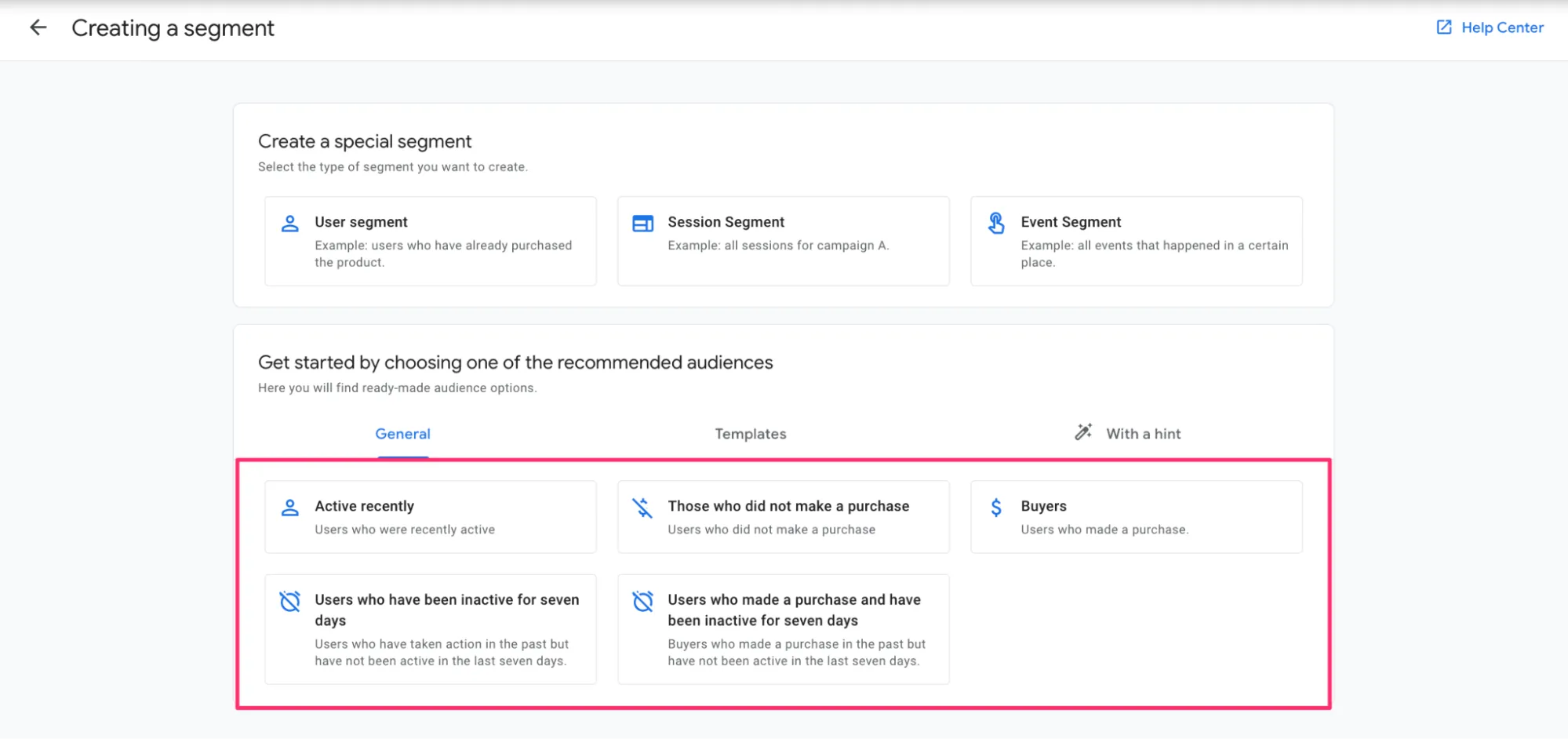
Example of a segment builder
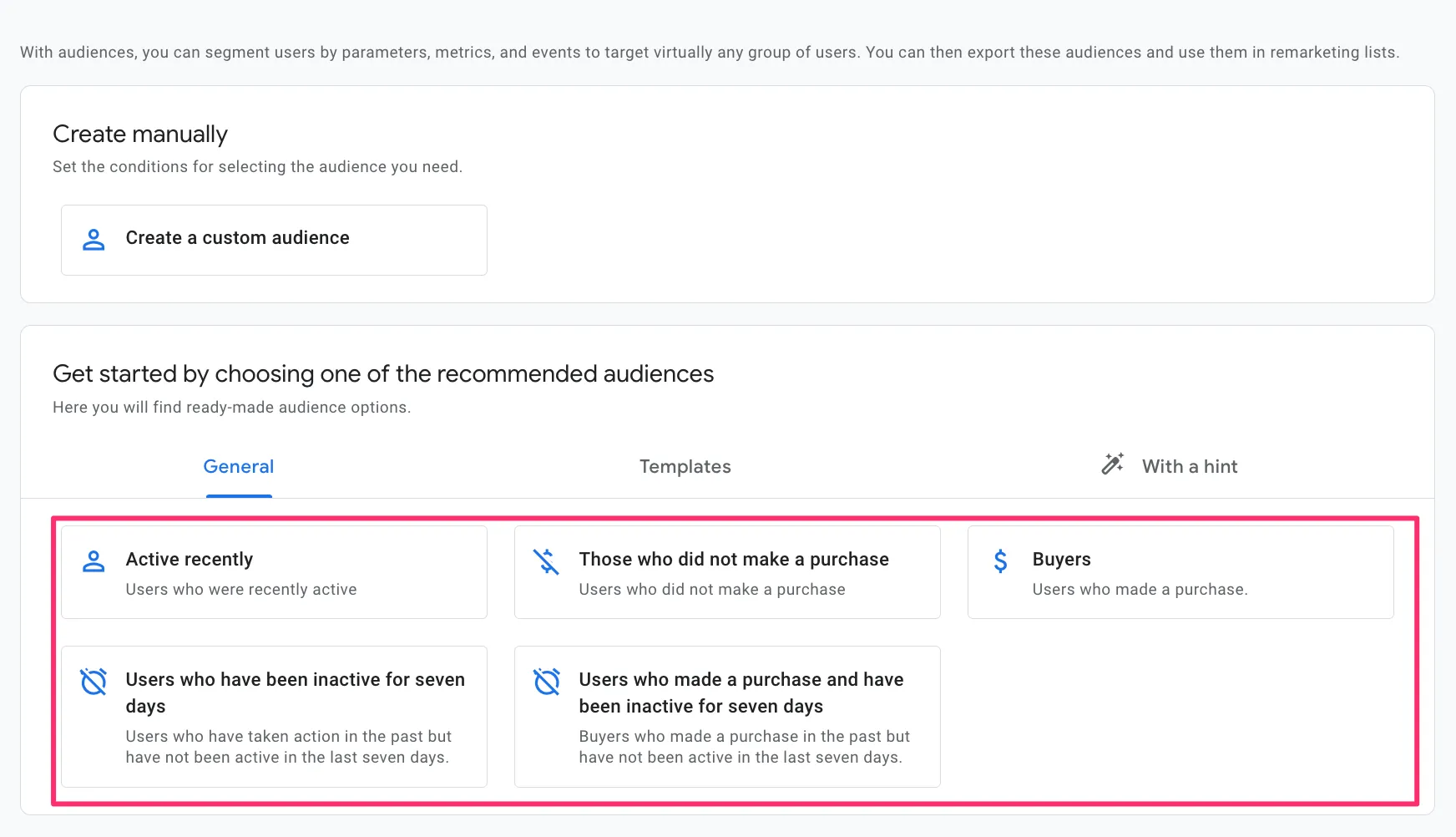
Example of an audience builder
The main difference becomes evident when creating a user segment. There are three options to choose from: User segment, Session segment, and Event segment.
How do you create and configure audiences in GA4?
Before moving on to the practical part, there are a few limitations that should be taken into account when working with audiences in GA4.
-
The maximum number of audiences per property is 100.
-
One audience can be used in different systems without restrictions.
-
A maximum of 100 audiences can be published in Analytics.
-
To get access to audience creation and management, users need to have the Marketer role at the property level.
-
It takes 24–48 hours for new audiences to begin collecting user data.
How to create a custom audience
Let's look at an example of this process.
Suppose you want to track users who have registered for a webinar. The website has a registration form, but the event of sending the form is not configured in GTM or GA4. After filling out the form, the user is taken to a Thank you page instead. This page's URL indicates successful registration.
The goal is to create an audience of these registered users to analyze their behavior or show them additional advertisements later.
After creating a new audience in GA4, you must select a criterion for its creation. Several parameters are available in the drop-down list, including dimensions, metrics, and events. Depending on the task, you can select one or more parameters.
-
Dimensions include age, country, and other demographic characteristics. You can specify whether the condition should be met within a single session or throughout the entire period of user activity.
-
Metrics allow you to filter based on numerical values. For example, you can create an audience based on a user's LTV exceeding a certain amount.
-
Events allow you to create an audience based on a specific event.
Depending on the selected criterion, you may need to configure additional conditions and scope separately so that the audience works correctly.
-
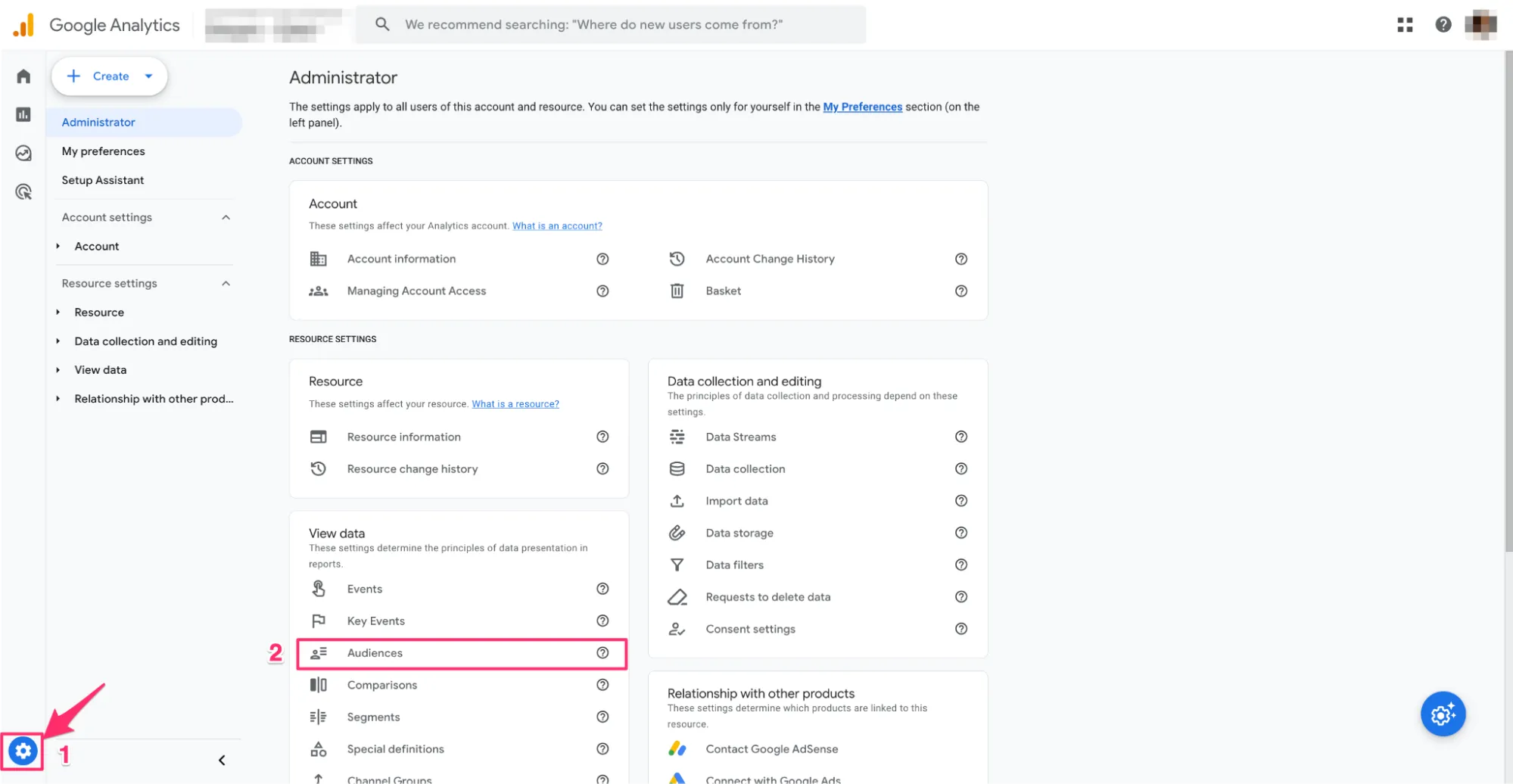
Open your Google Analytics 4 account and go to the audience builder.
-
Click on Admin (the gear icon in the lower left corner).
-
In the Data view column, select Audiences.
-
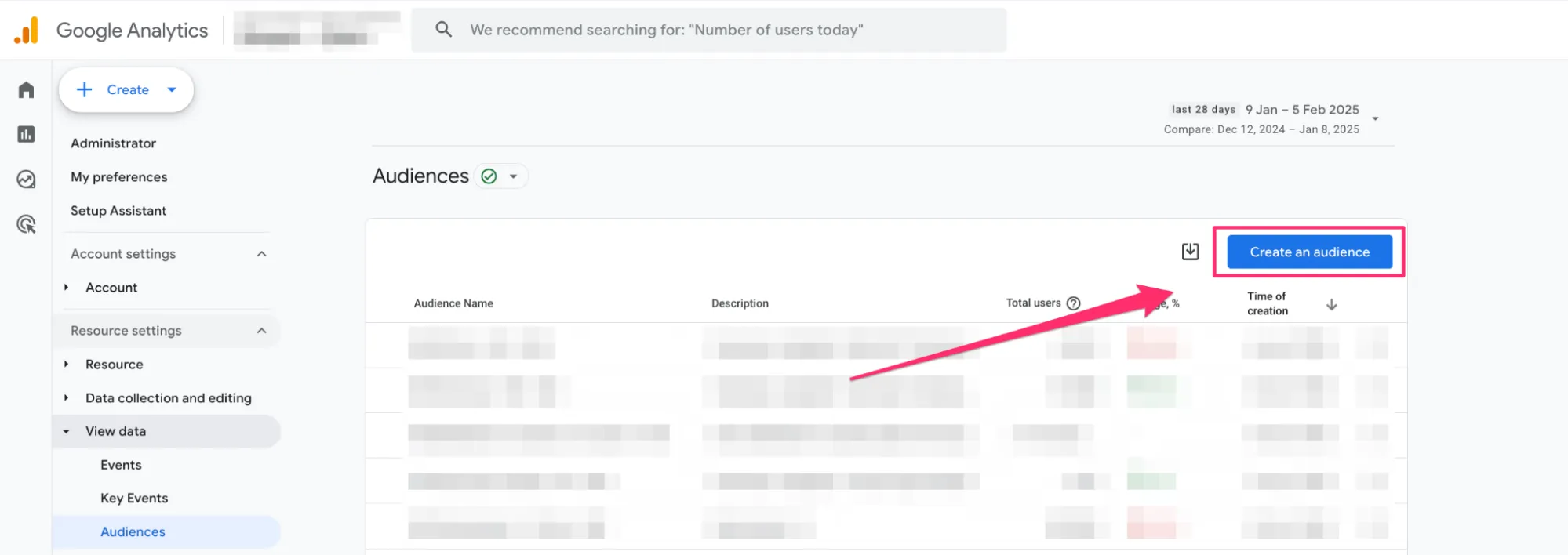
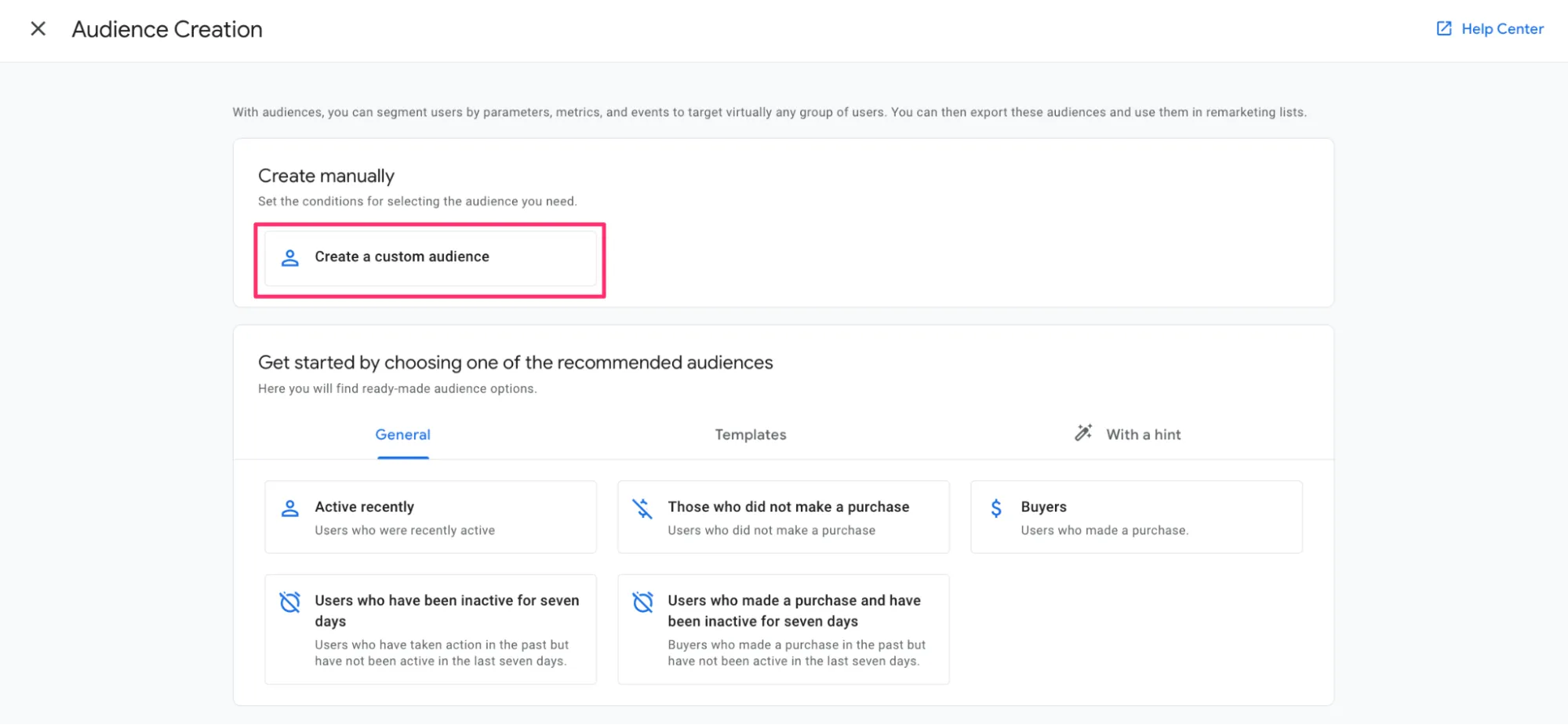
First, click Create an audience, then click Create a custom audience.
-
Add conditions to enable users.
In the next window, manually configure the audience.
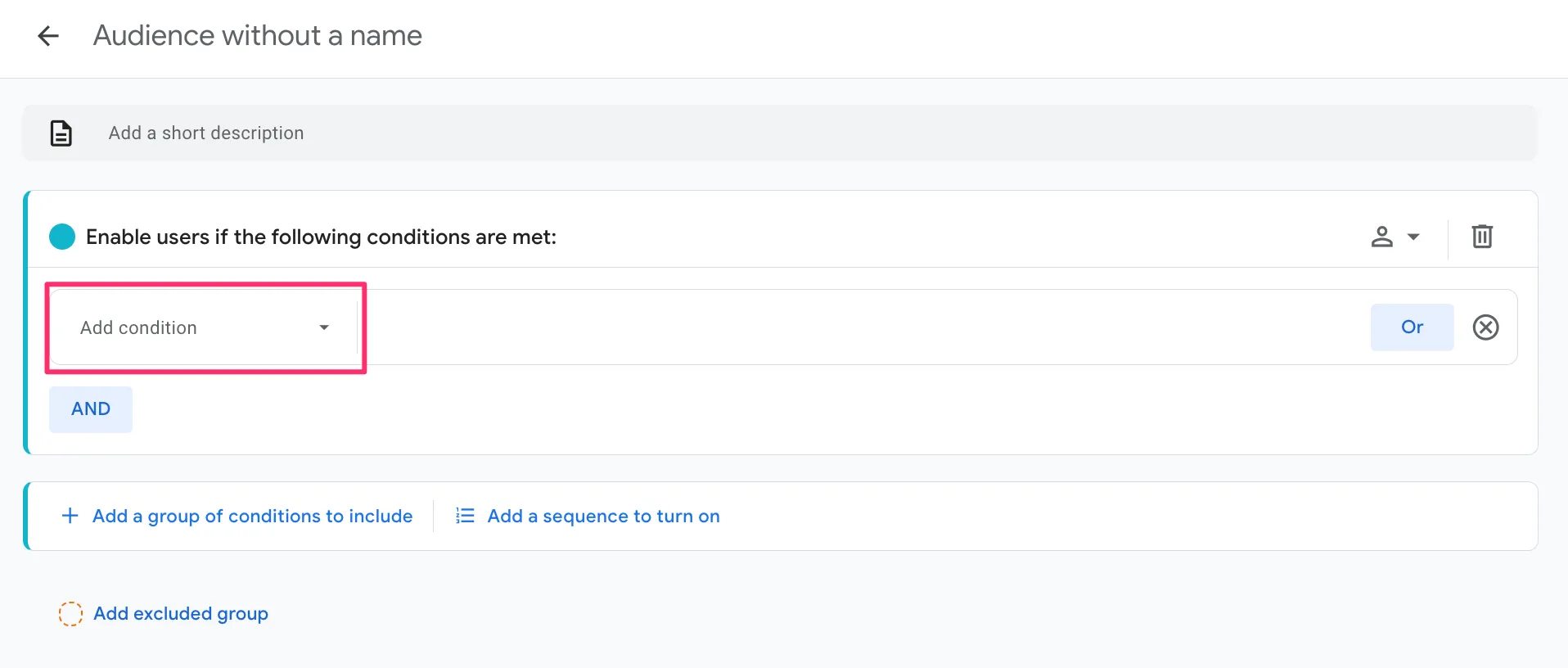
- In the Enable users if the following conditions are met field, click Add condition.
-
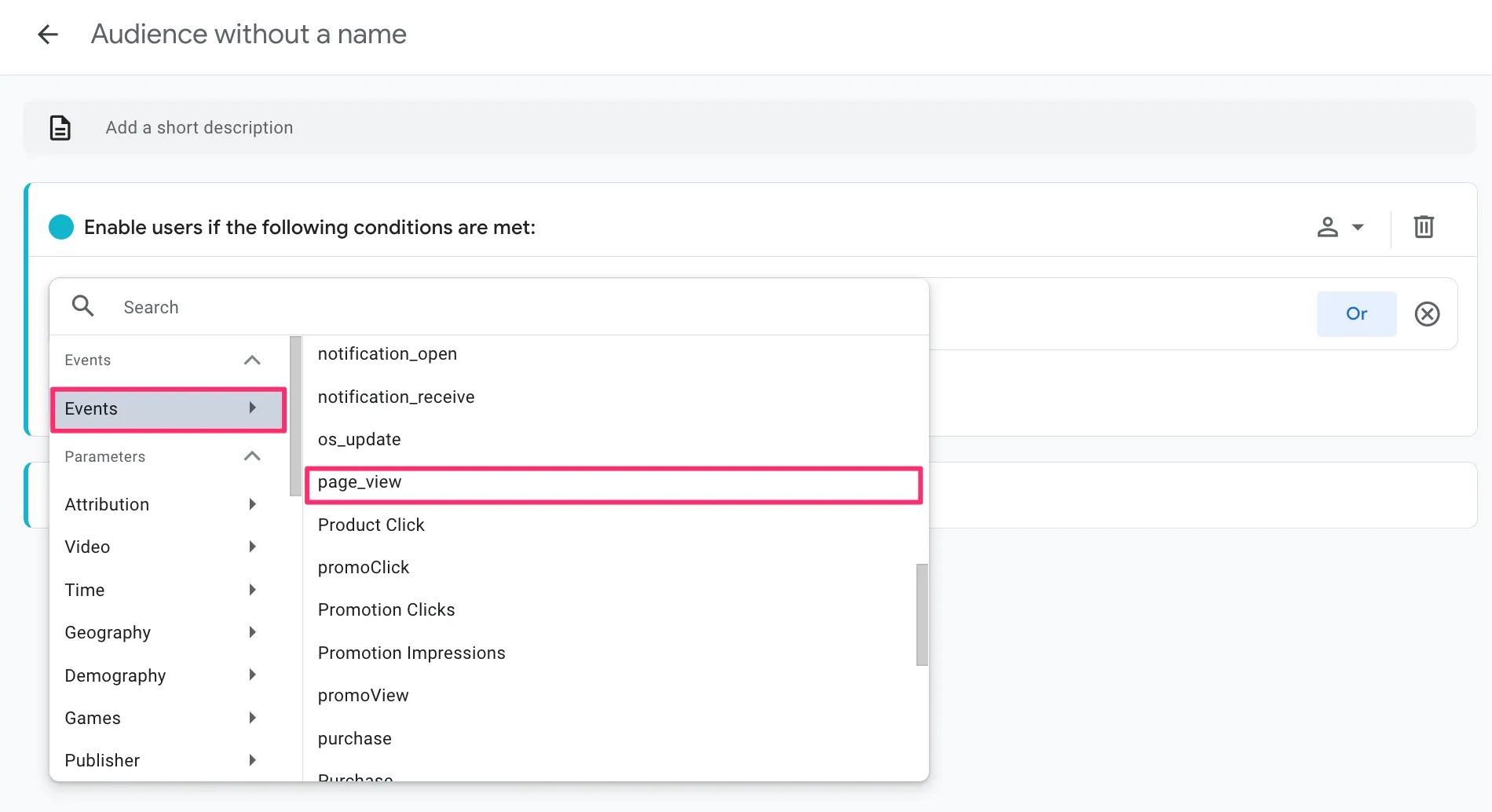
Since we are interested in users who have viewed a specific page, select the page_view event.
-
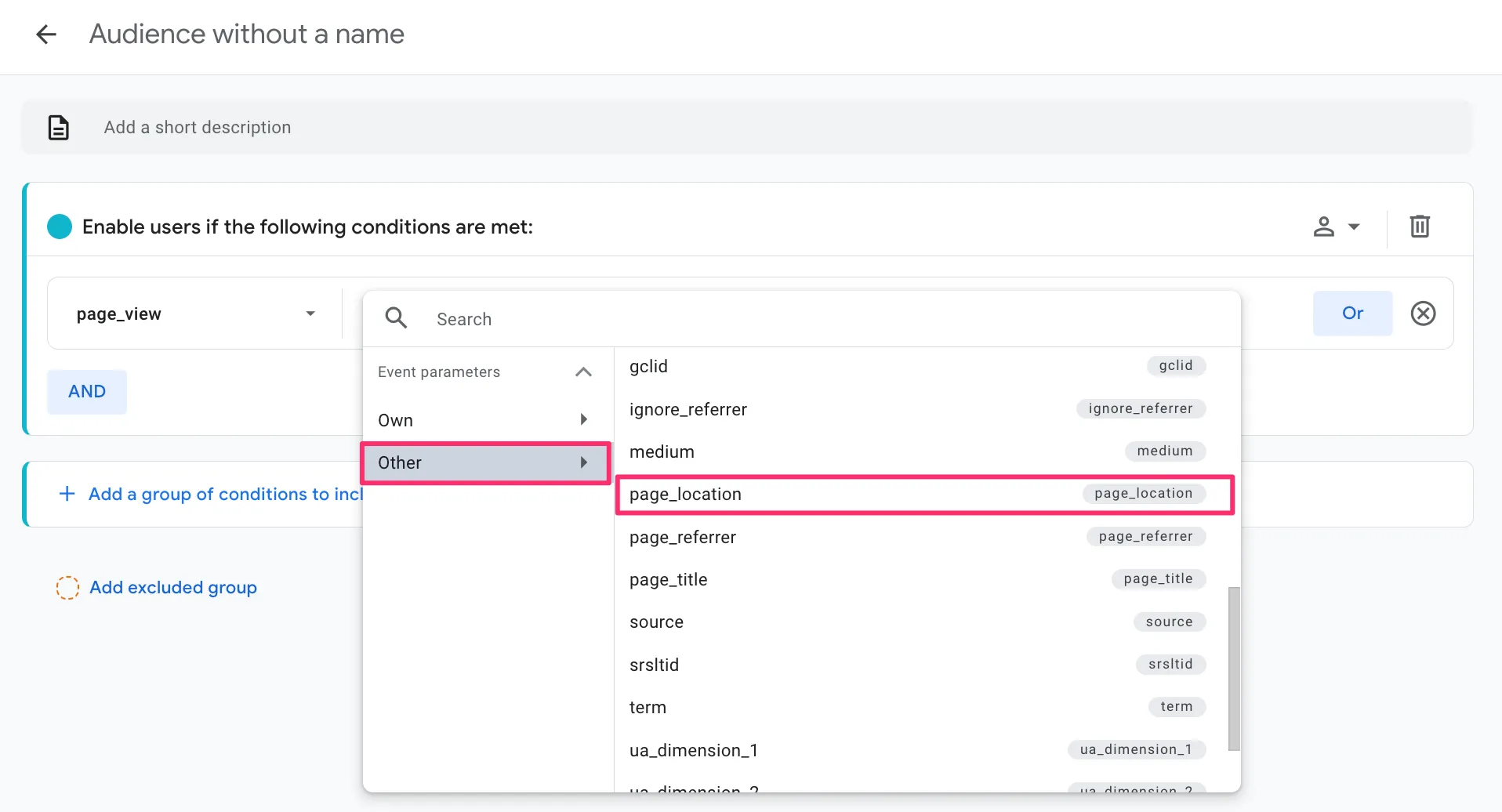
Click + Add parameter and select Other from the drop-down list. Then, select the page_location parameter (page URL).
-
Set the condition to page_location contains 'thank-you' or another part of the thank-you page URL.
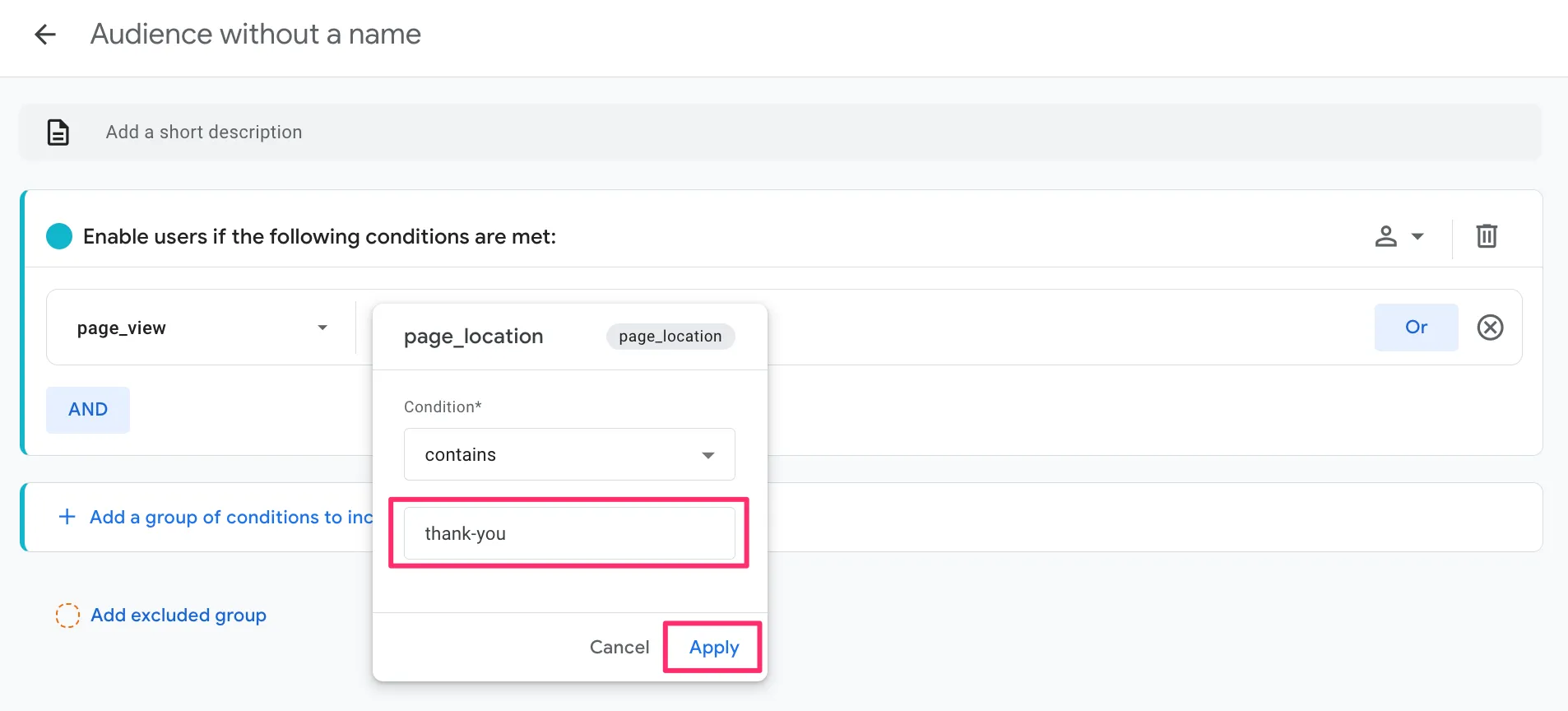
Tip: If the site has multiple Thank you pages, ensure the selected condition is not too broad. If necessary, specify the full address or use more specific expressions.
Go to additional audience settings.
Membership duration
Set the amount of time that users will remain in the audience after fulfilling the conditions.
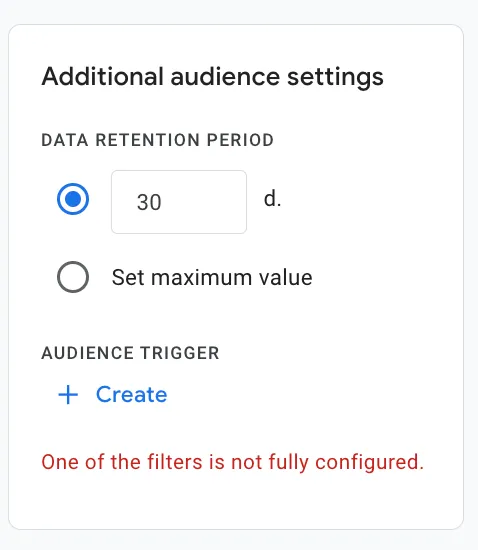
Duration update
To extend the audience's stay after each new entry to the Thank you page, activate the option to reset the duration upon repeat action. This allows you to better handle repeat registrations and build a loyal customer base.
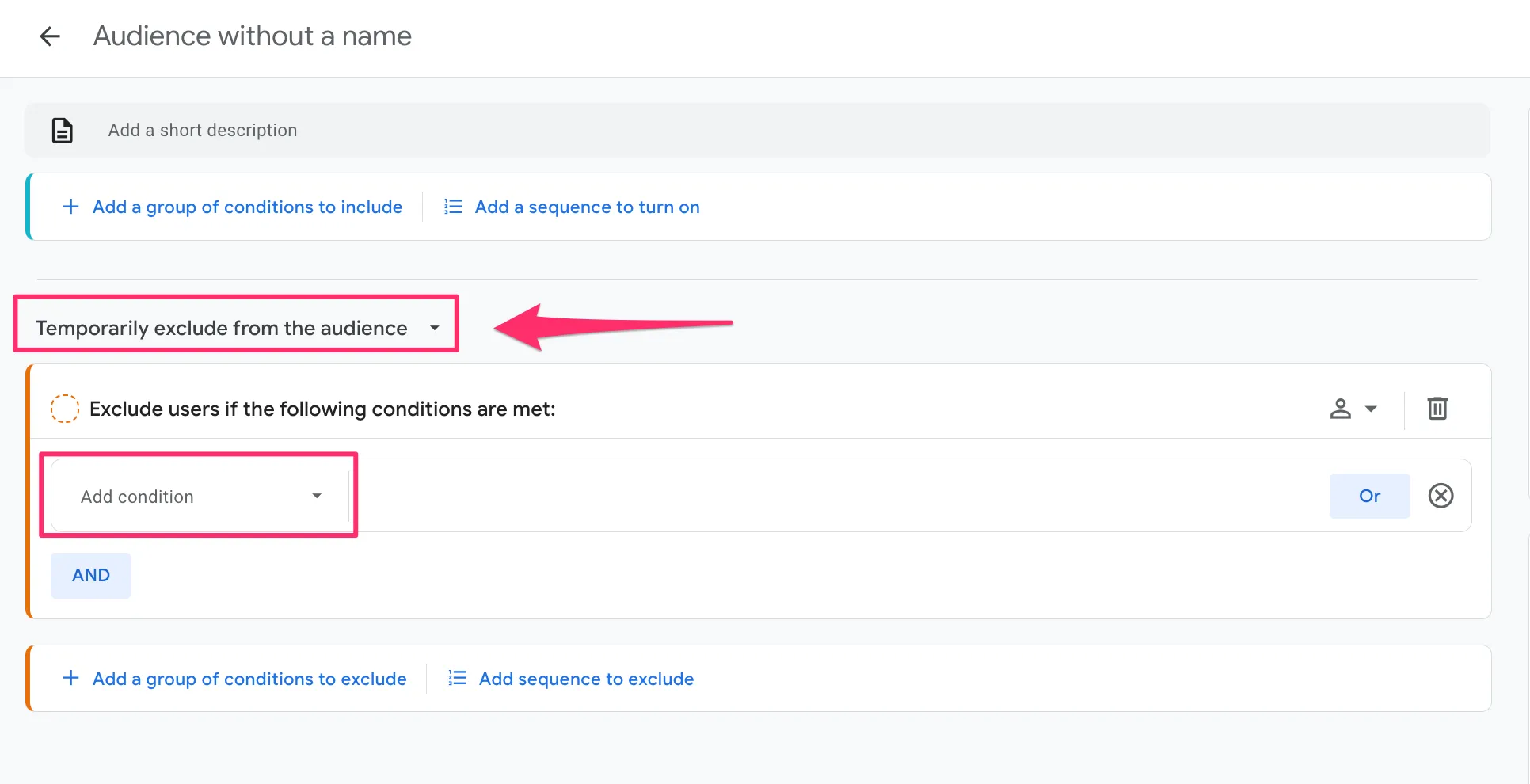
Excluding users
You can exclude certain categories of users, such as internal testers, colleagues, or bots, if necessary. To do so, click Add a group of conditions to exclude and specify the appropriate parameters.
Complete the setup.
-
Give the audience an informative name, such as Register to webinar (via Thank you page).
-
Add a description if necessary, so that you can understand why this audience was created in the future.
-
Click Save.
Click Add a group of conditions if you want the user to meet several conditions at once, such as visiting the Thank you page from a specific country. This allows you to combine criteria for more precise targeting.
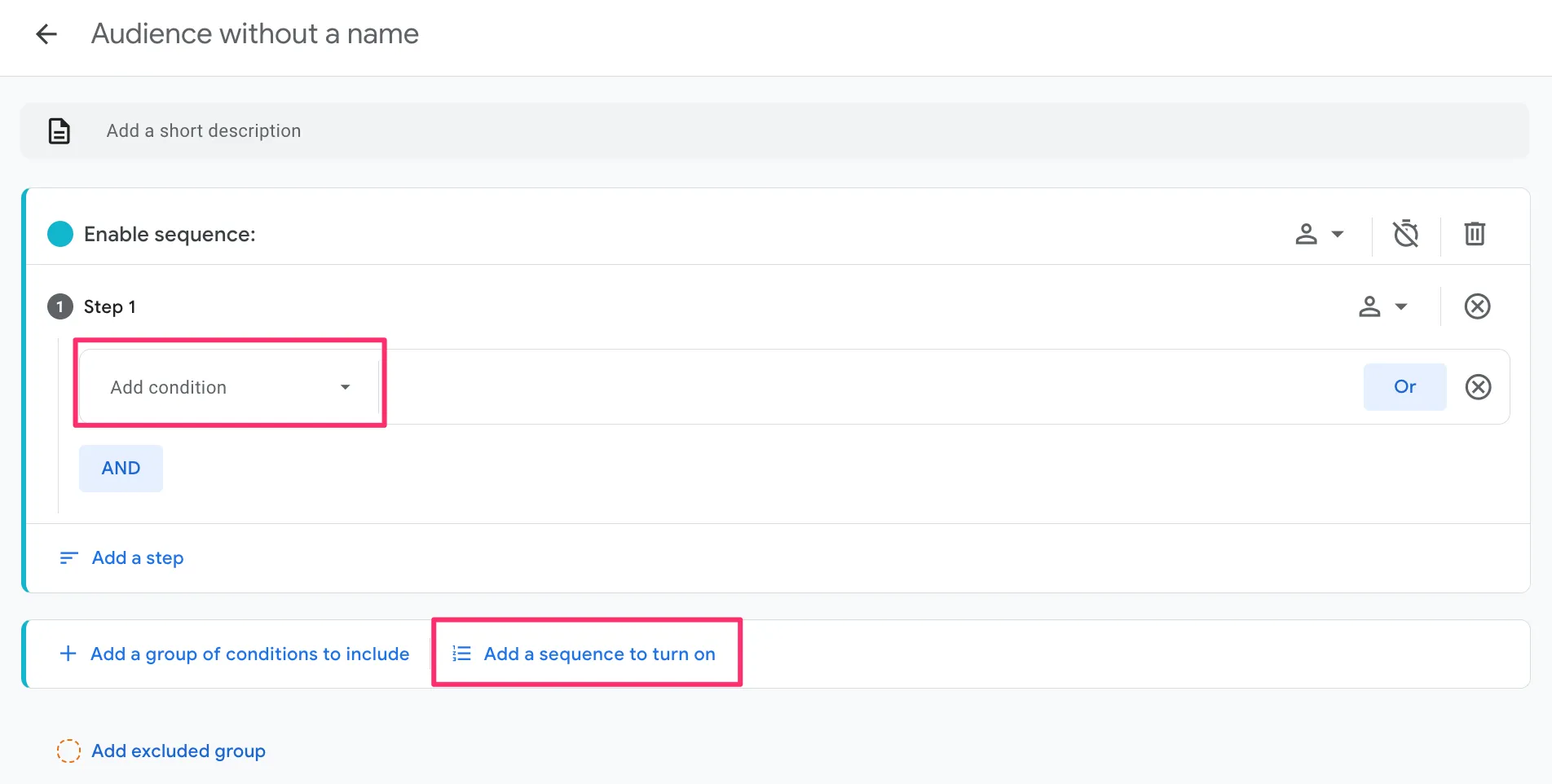
To set the order of the steps and the time between them, click Add a sequence to turn on.
Using recommended audiences
Google Analytics 4 offers a variety of pre-configured audiences that can be customized for your business goals. There are three main types of ready-to-use audiences:
-
General
-
Templates
-
Predictive
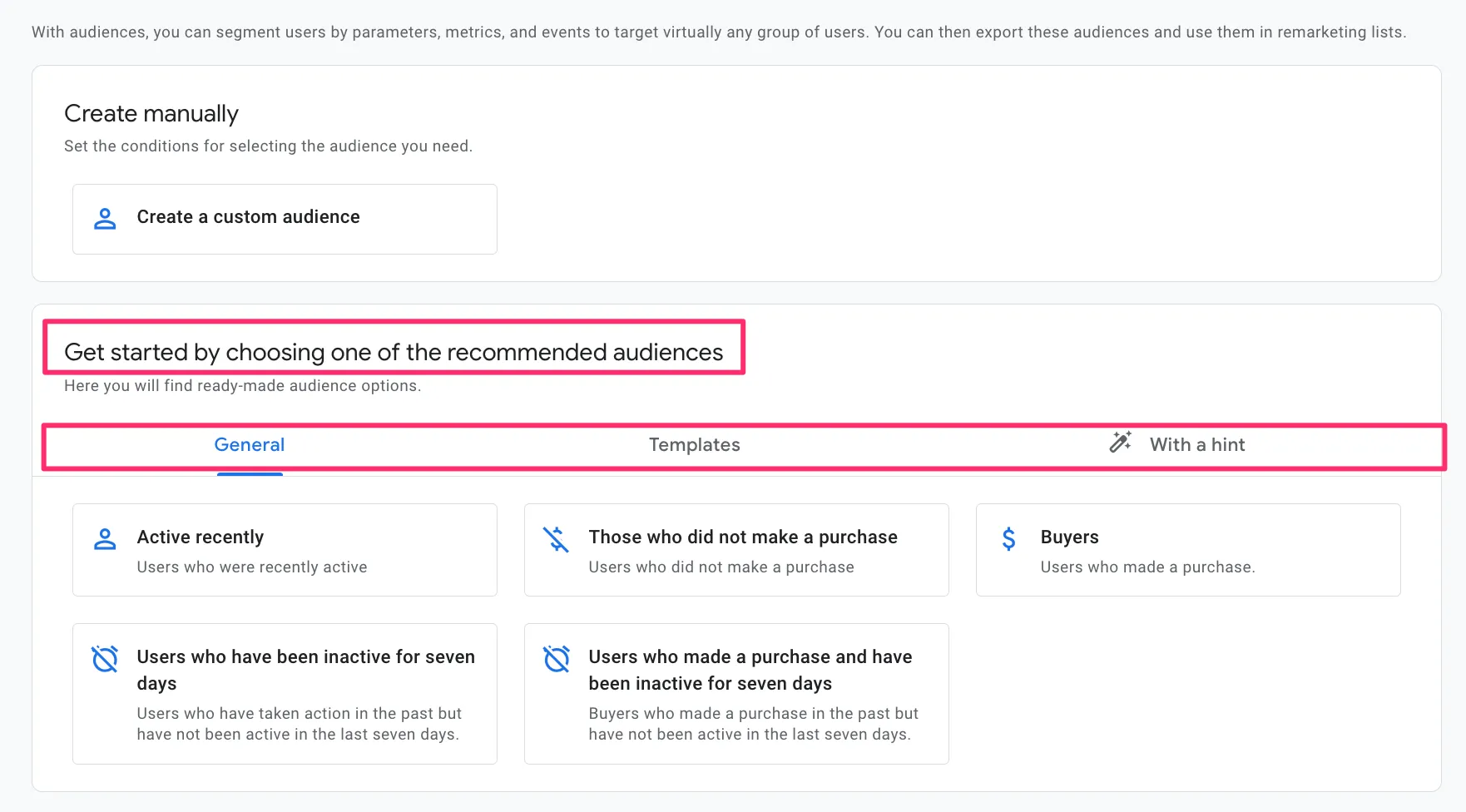
Now, let's take a closer look at each group.
General audiences
These are pre-built segments that GA4 automatically generates based on typical user behavior. These audiences help you better understand your users and their activity, as well as create targeted marketing campaigns.
GA4 offers the following categories for creation:
-
Active recently
-
Buyers
-
Those who did not make a purchase
-
Users who made a purchase and have been inactive for seven days
-
Users who have been inactive for seven days
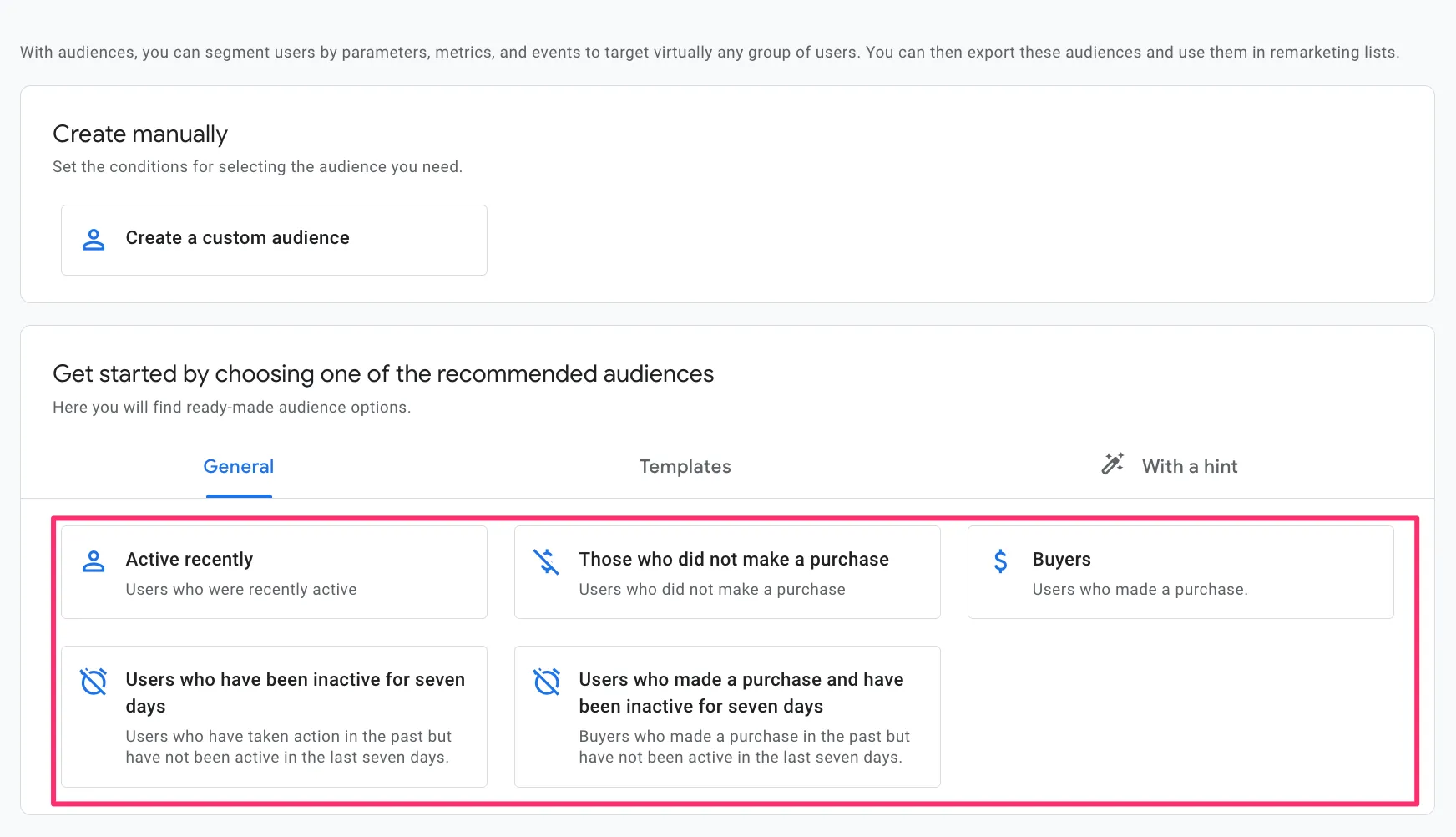
Imagine that you own an online cosmetics store. One of your best-selling products is a face serum that typically lasts a month. To encourage repeat purchases, you should remind customers about the product just when their supply is likely to run out.
Here's how to set up an audience for this purpose:
-
Select the general audience of Users who made a purchase and have been inactive for seven days.
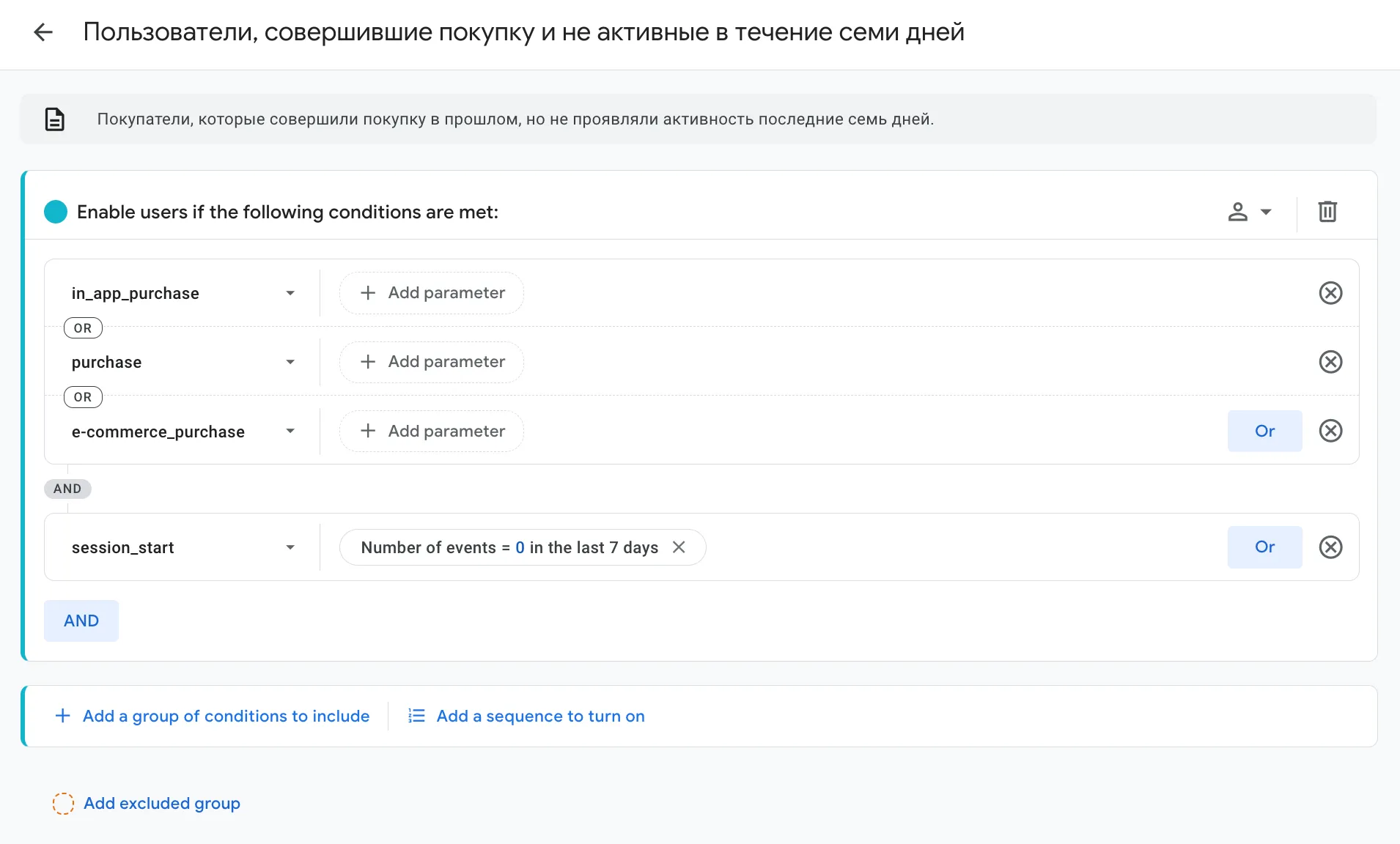
-
Replace the event_count parameter with session_start, and set the period to 30 days. Then, click Apply.
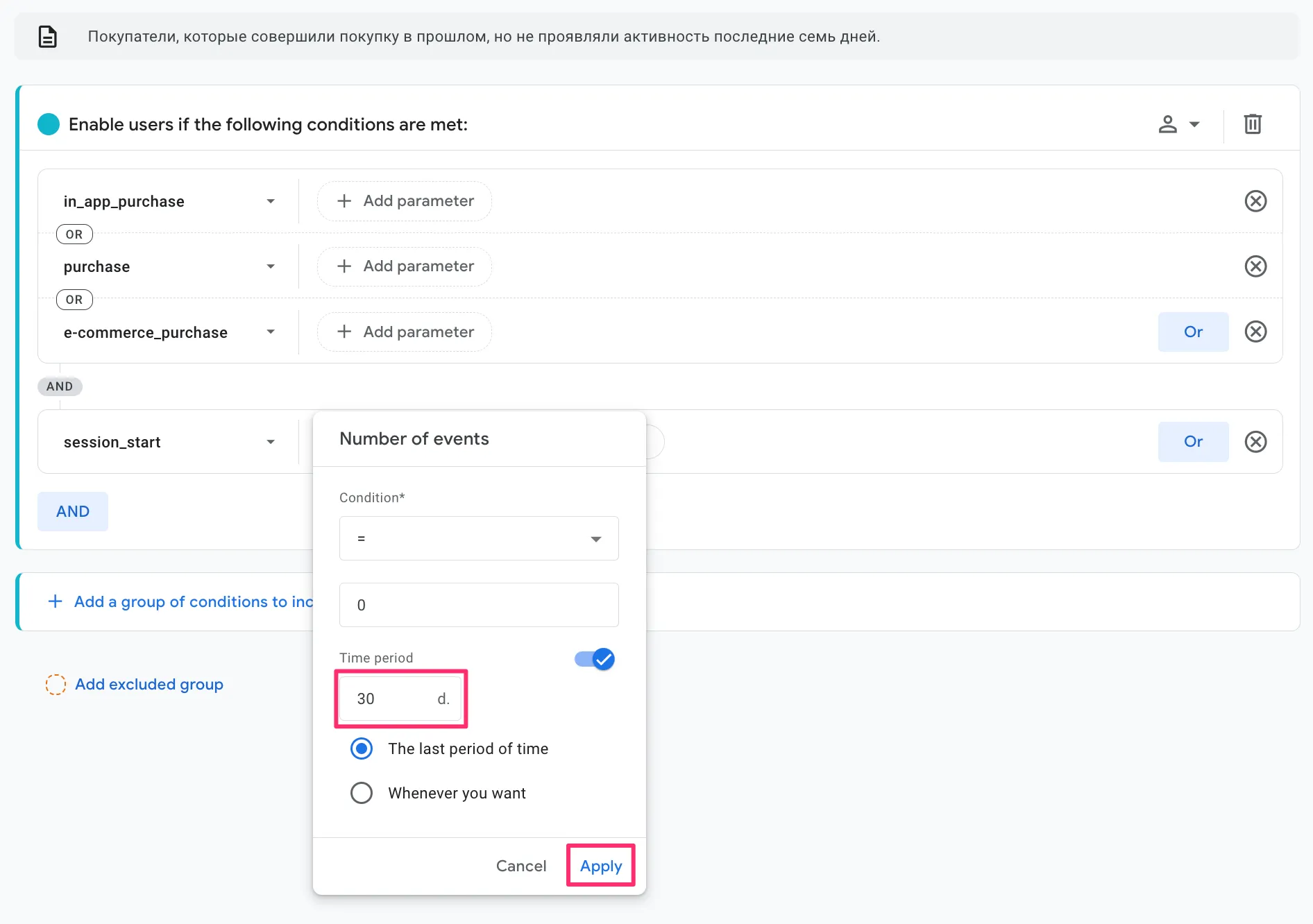
Next, narrow down your audience by selecting visitors who have purchased your serum:
-
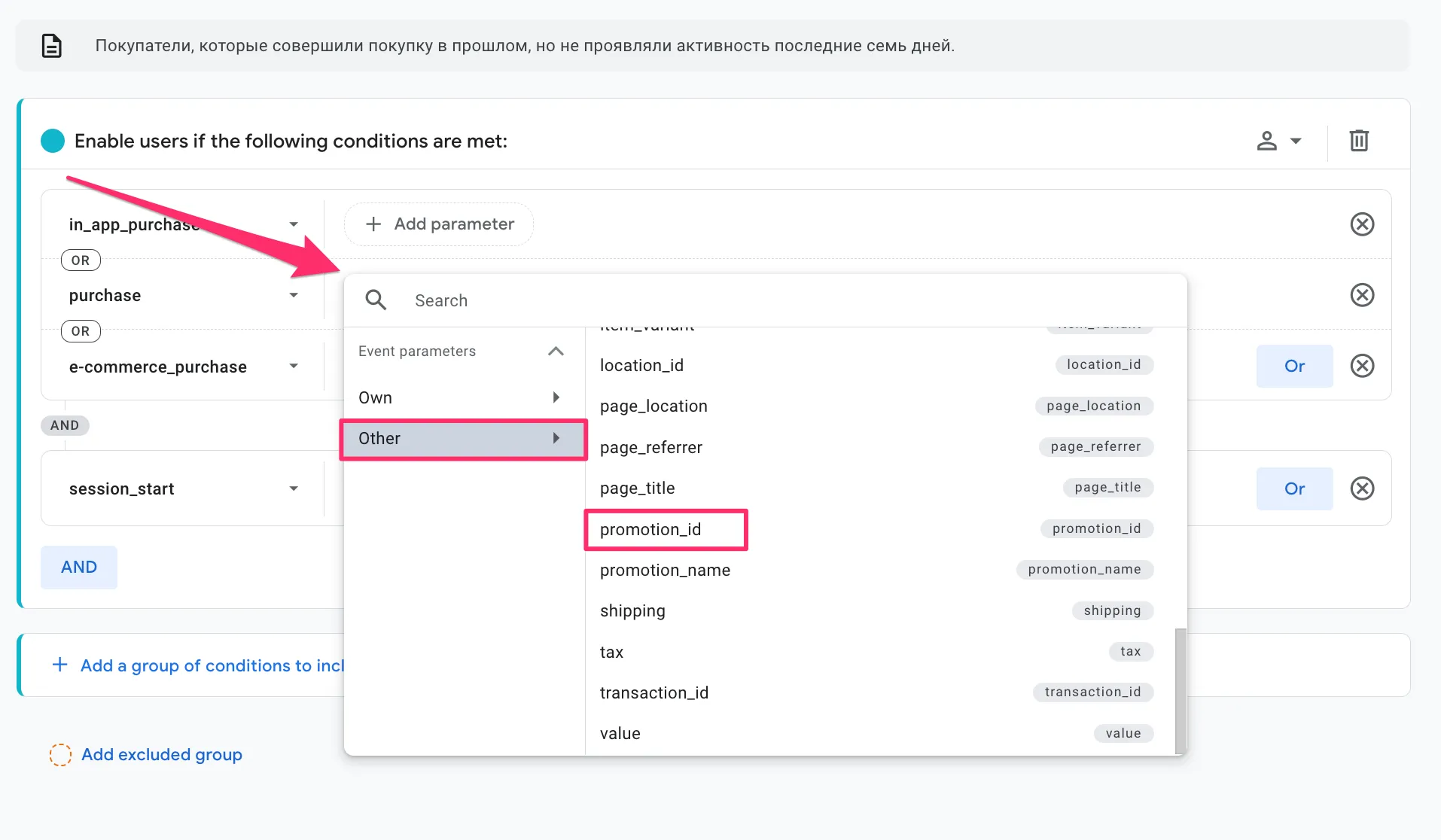
Click + Add Parameter in the in_app_purchase row.
-
Then, go to the Other option and select either product_id or promotion_id.
-
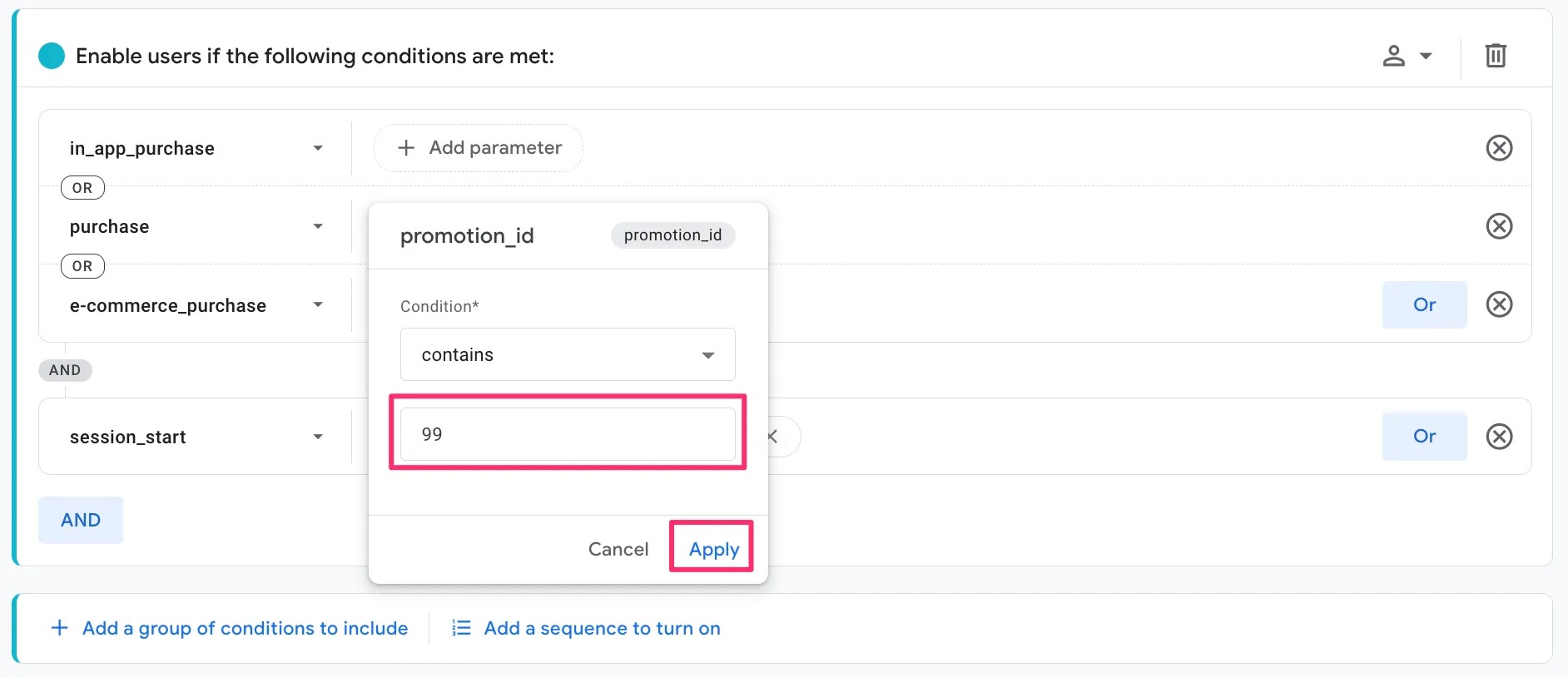
Set the contains condition for a specific product, e.g., enter the product ID.
-
Rename the audience and save your settings.
Note that this is just one way to use common audiences. You can experiment with different options to achieve your marketing goals.
Template audiences in GA4
They help you create audiences faster without having to set everything up from scratch.
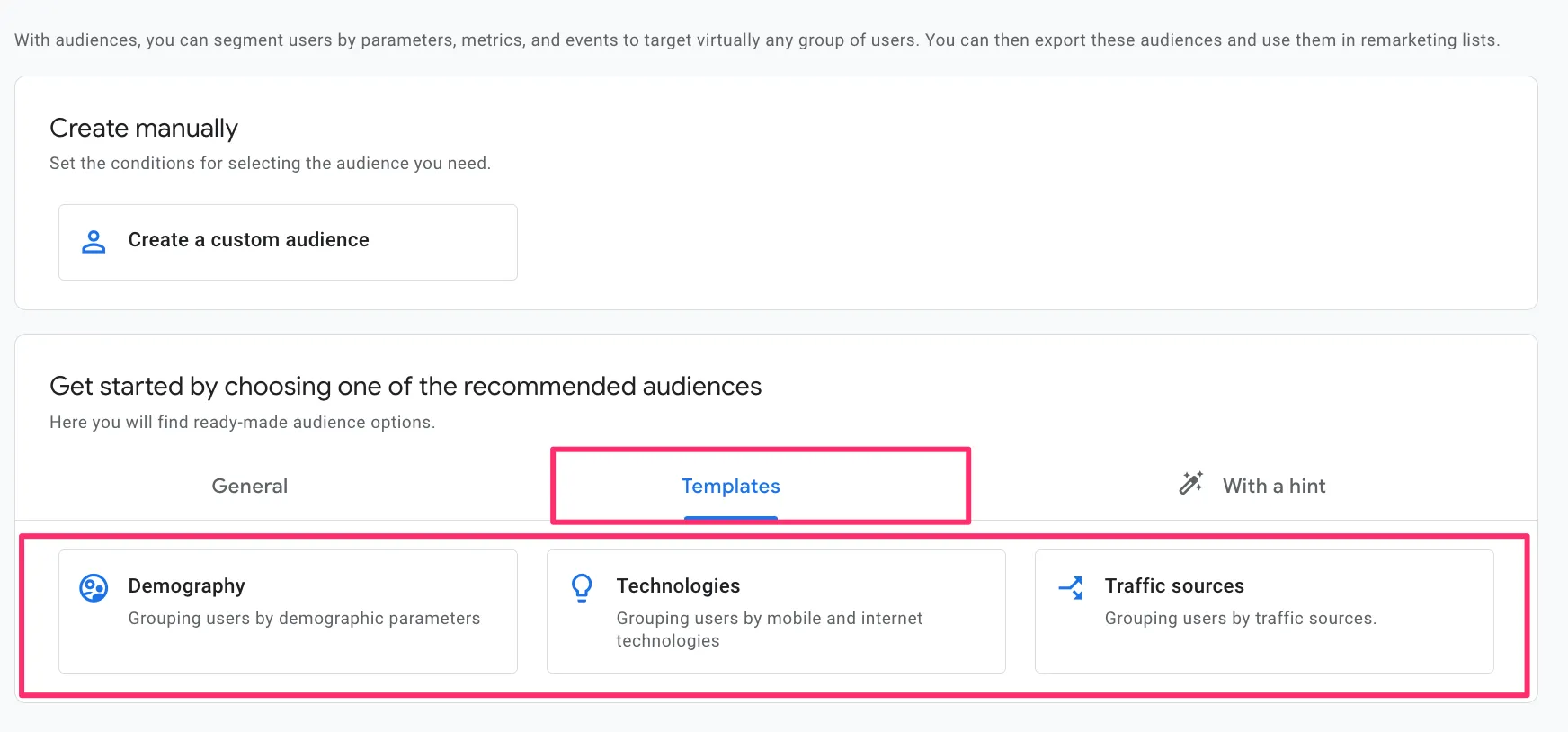
There are three types of templates available in GA4: demographic, technological, and traffic sources. See below for a description of each.
Demographic templates
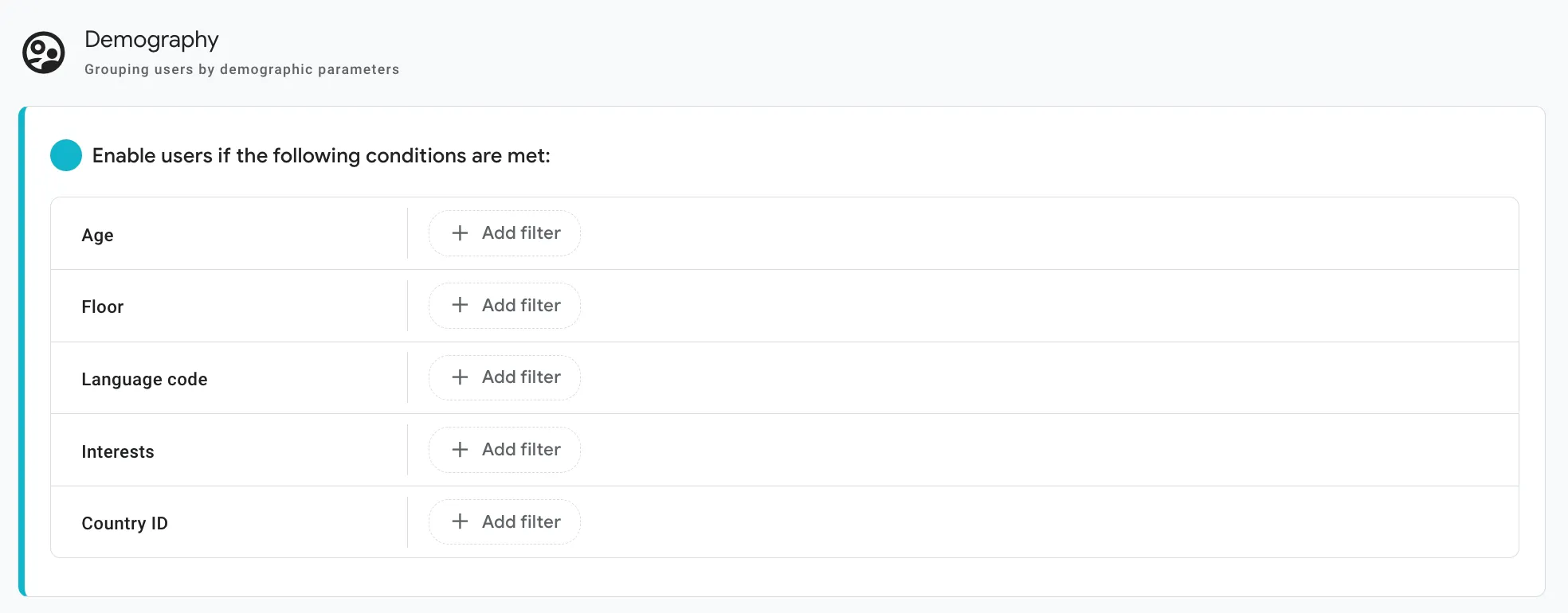
Demographic data templates allow you to segment your audience based on demographic data:
-
Age
-
Language code
-
Gender
-
Interests
-
Country ID
Using this data helps you better understand your target audience, and you can tailor your marketing campaigns more effectively.
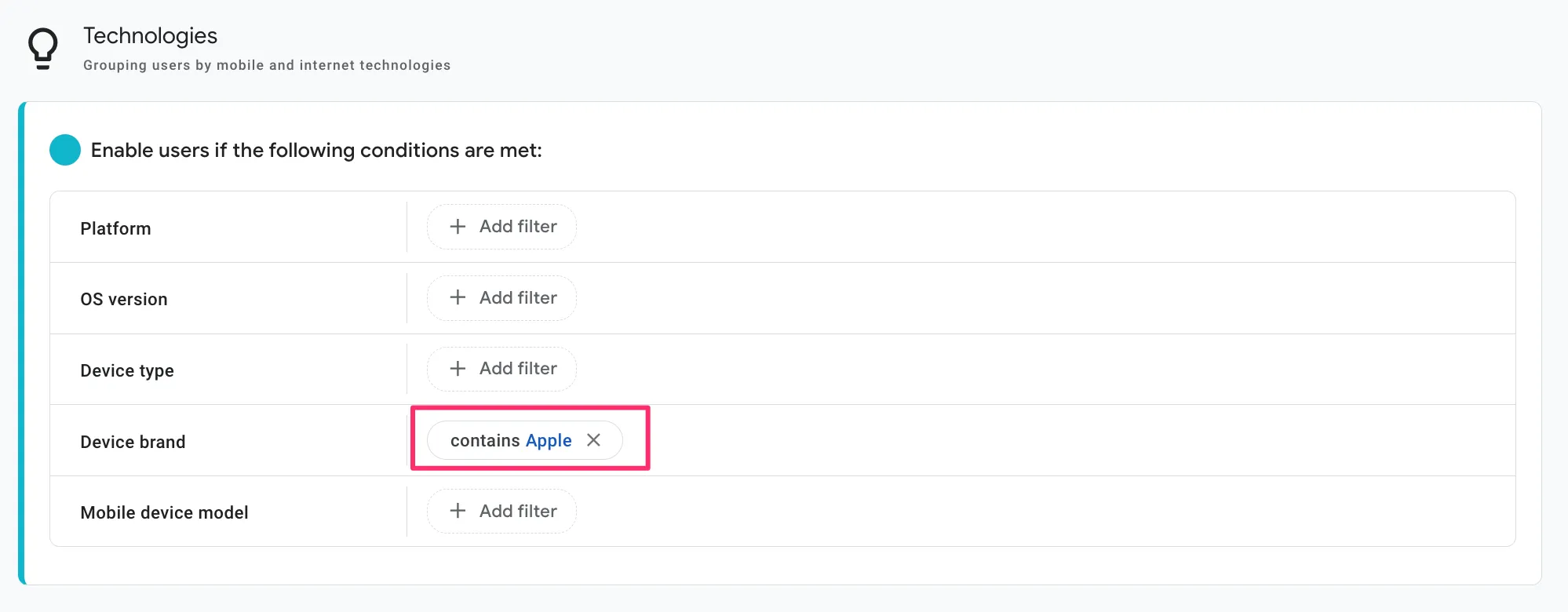
Technologies
You can use technological templates to create audiences based on users' technical parameters:
-
Device type
-
Device brand
-
Platform
-
OS version
This is useful for identifying technical issues and ensuring your website or app is compatible with different platforms and devices.
For example, if you have developed a new feature for a mobile application and want to test it on iPhones, you can create an audience of people who use this device.
Traffic sources
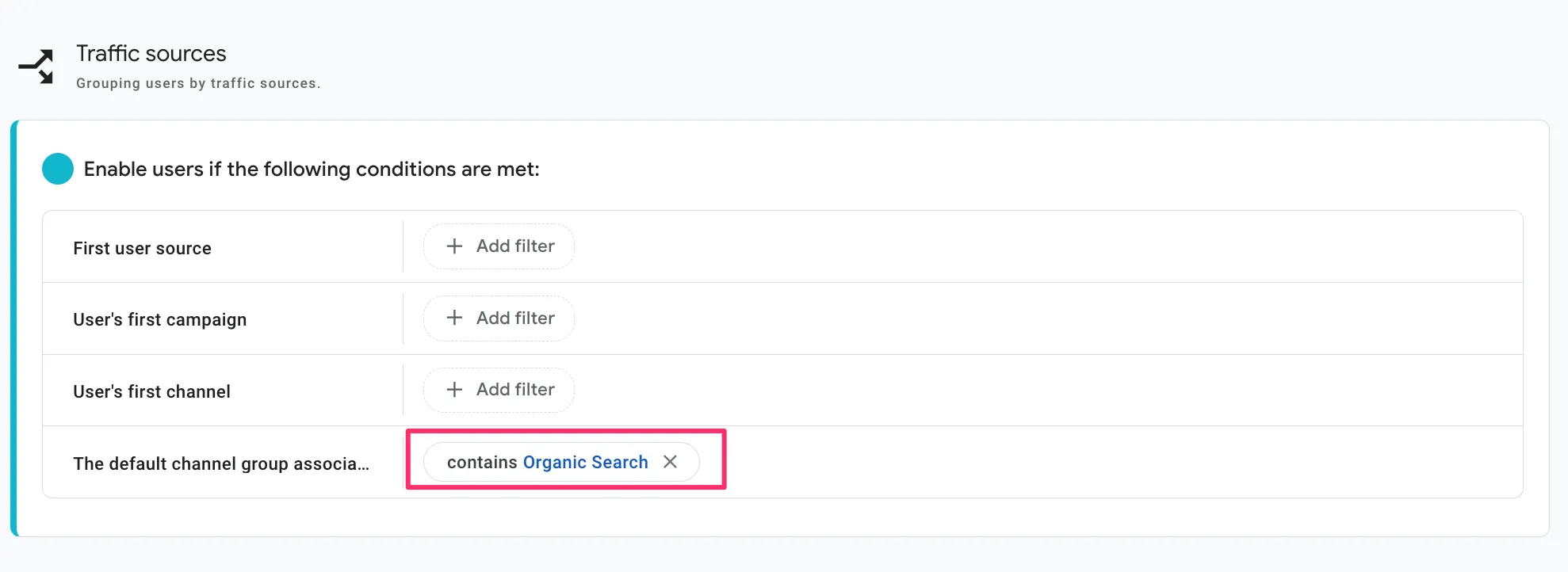
They help you segment users based on how they found your site, such as through search engines, social networks, or other channels.
If you want to increase organic traffic, create a segment of users who found your site through a search engine. If you are analyzing the effectiveness of social media campaigns, isolate the audience coming from Facebook or Twitter.
Predictive audiences in GA4
GA4 allows you to build audiences based on predictions. For example, you can identify users who are highly likely to make a purchase or bounce.
The available types of predictive audiences:
-
Users who may no longer be active buyers within seven days: Users who have made a purchase but are unlikely to return to the website or app.
-
Users who may become inactive within seven days: Visitors who are unlikely to return to the website or app soon.
-
Users who can make a purchase within seven days: Users predicted to purchase within the next week.
-
Users who can make their first purchase within seven days: Users who are buying for the first time within the next week.
-
Users with projected high spend in 28 days: Users who are likely to generate the most revenue over the next month.
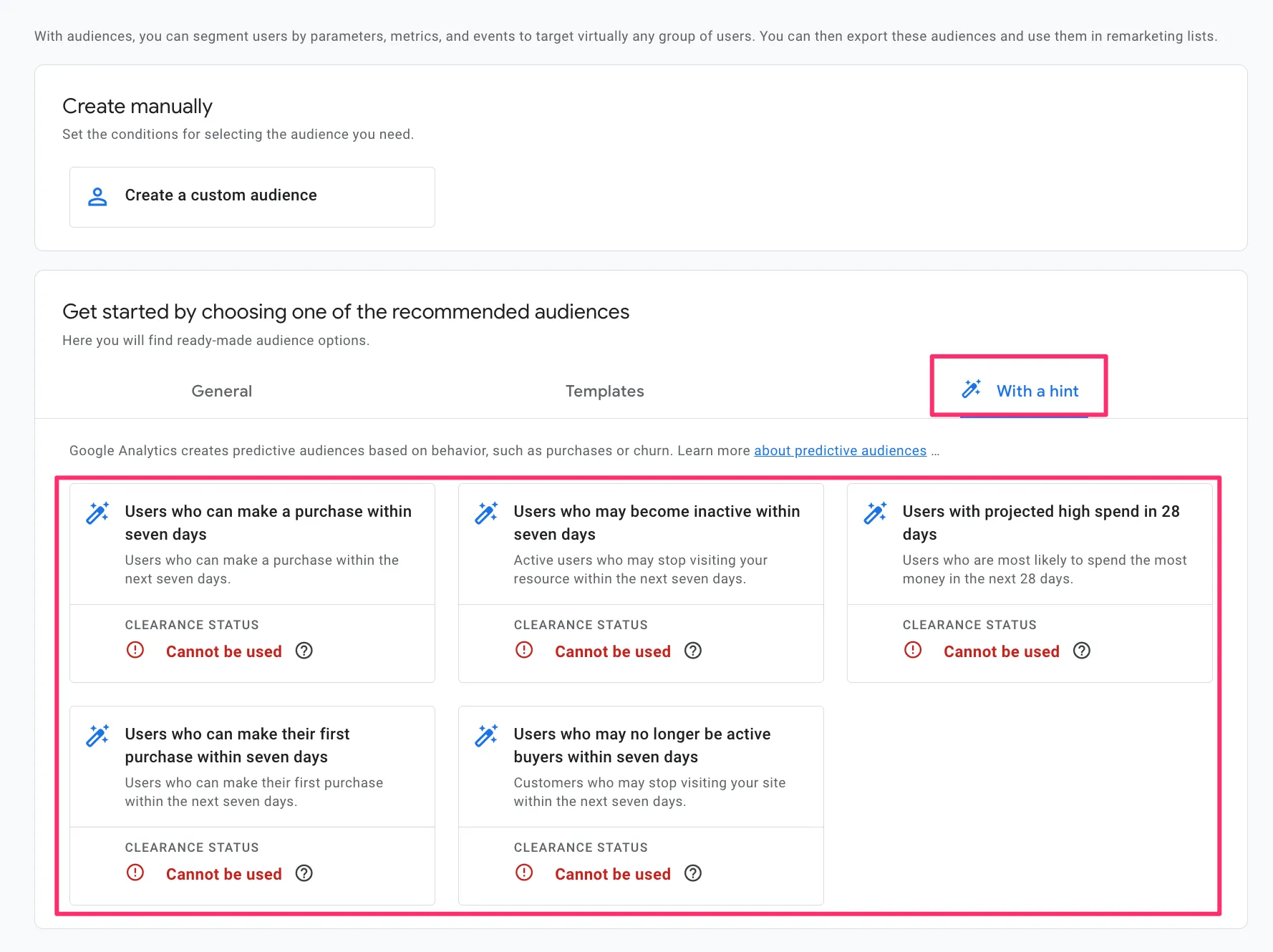
Using such audiences in GA4 helps you stay ahead of the curve rather than simply reacting to events. By anticipating user behavior, you can create more effective and personalized marketing campaigns that deliver better results.
Condition scoping function
GA4 allows you to precisely configure how conditions are applied to a segment, giving you greater control over audience segmentation.
The main types of scoping are as follows:
-
In one event. All conditions must be met within a single event. For example, a user views a product and adds it to their cart in one event.
-
In one session. All conditions must be met within a single session. This is best suited for tracking behavior during a single visit, such as viewing a product and completing a purchase before the session ends.
-
In all sessions. This scoping tracks the fulfillment of conditions throughout the user's lifetime. It is useful for analyzing long-term behavior, such as repeat purchases.
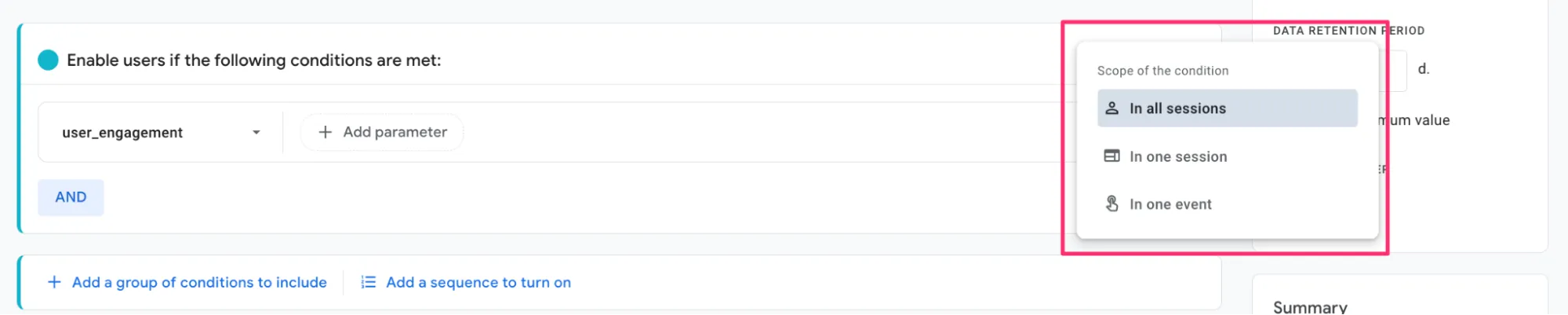
Applying these ranges allows you to create segments as broad or narrow as your strategy requires.
How to create an audience from segments?
You can create segments in the Research section and convert them into audiences.
Here's how:
-
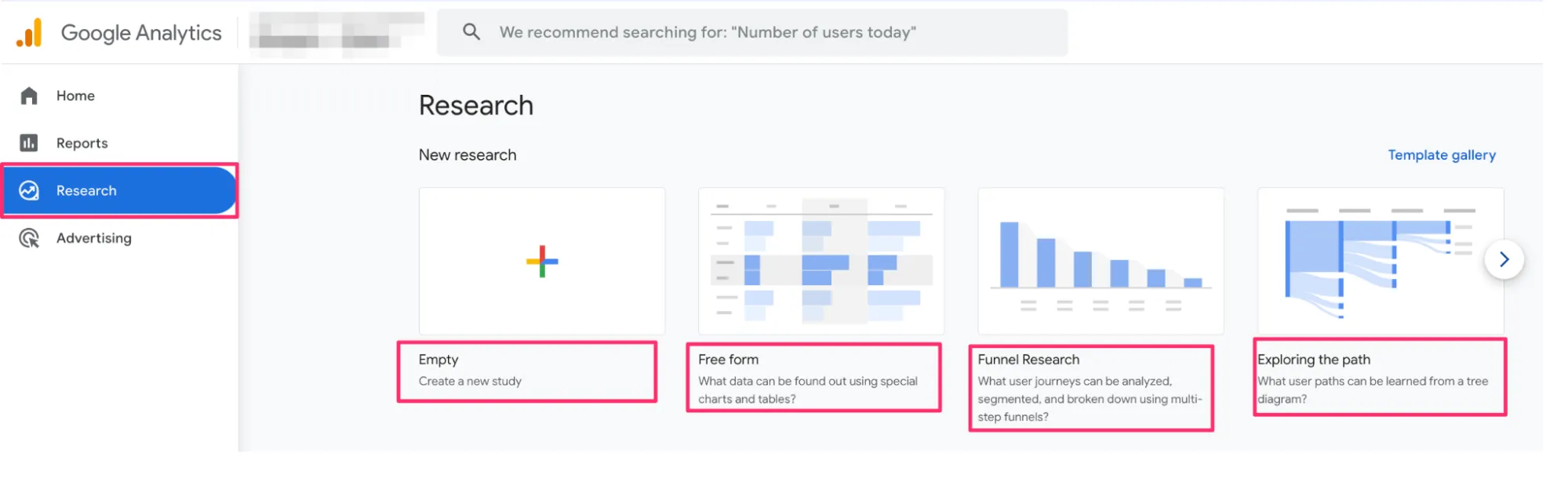
First, go to the Research section on the left side of the GA4 interface. Select the type of exploration that best aligns with your objectives: Blank, Free form, or Funnel research.
-
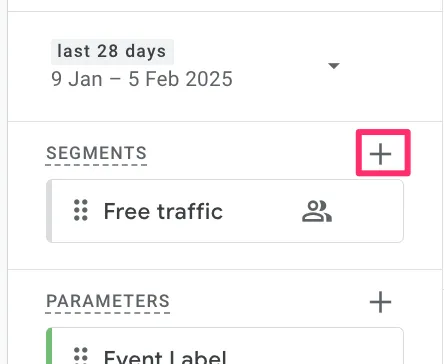
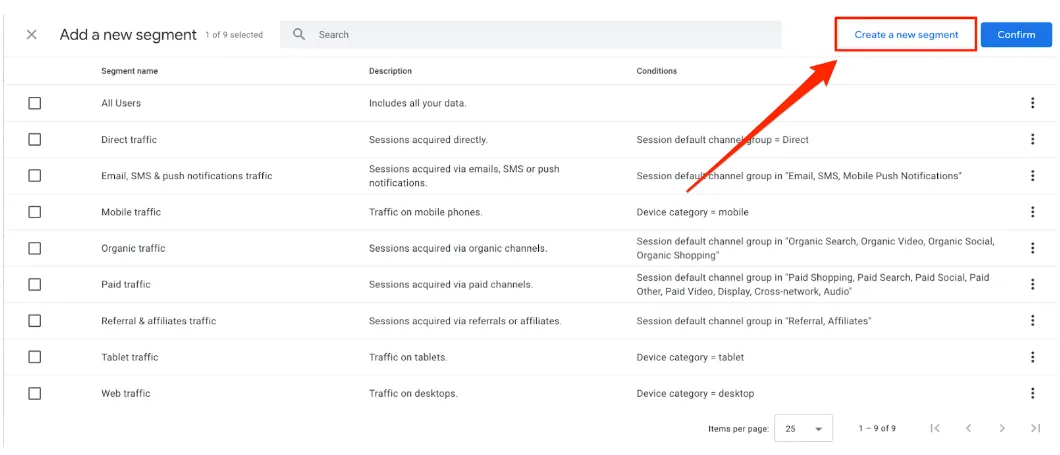
In the Variables column of the research report, select the Segments section. Then, click the “+” icon to create a new segment.
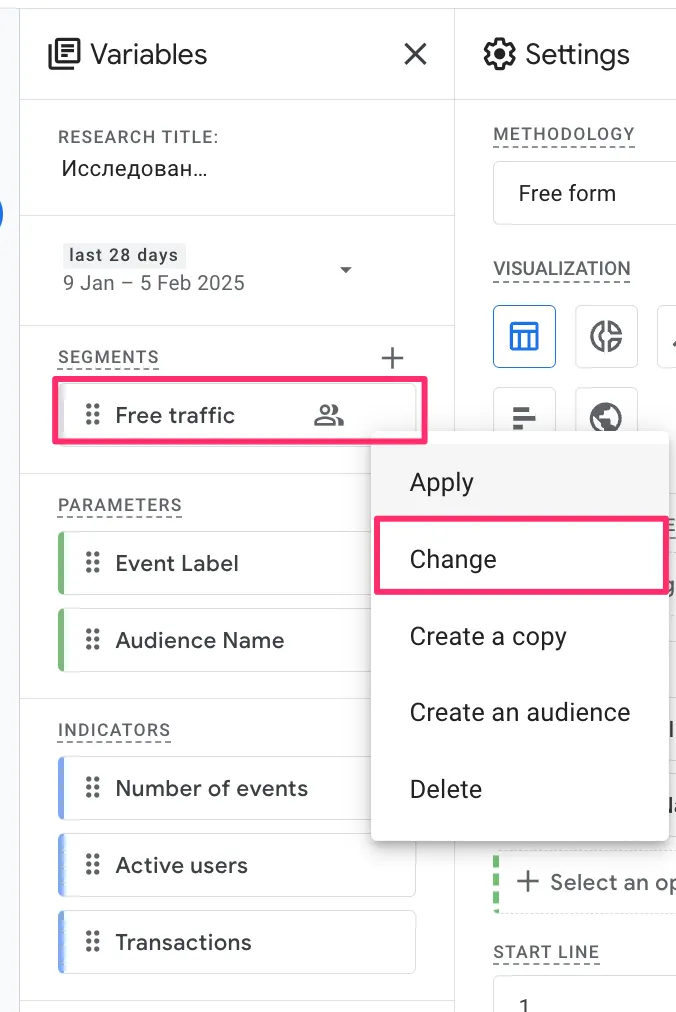
To convert an existing segment into an audience, click the three dots next to the segment and select Change.
-
Select the type of segment:
-
Special: to create a segment according to specific needs.
-
Recommended: for predefined templates based on typical user behavior.
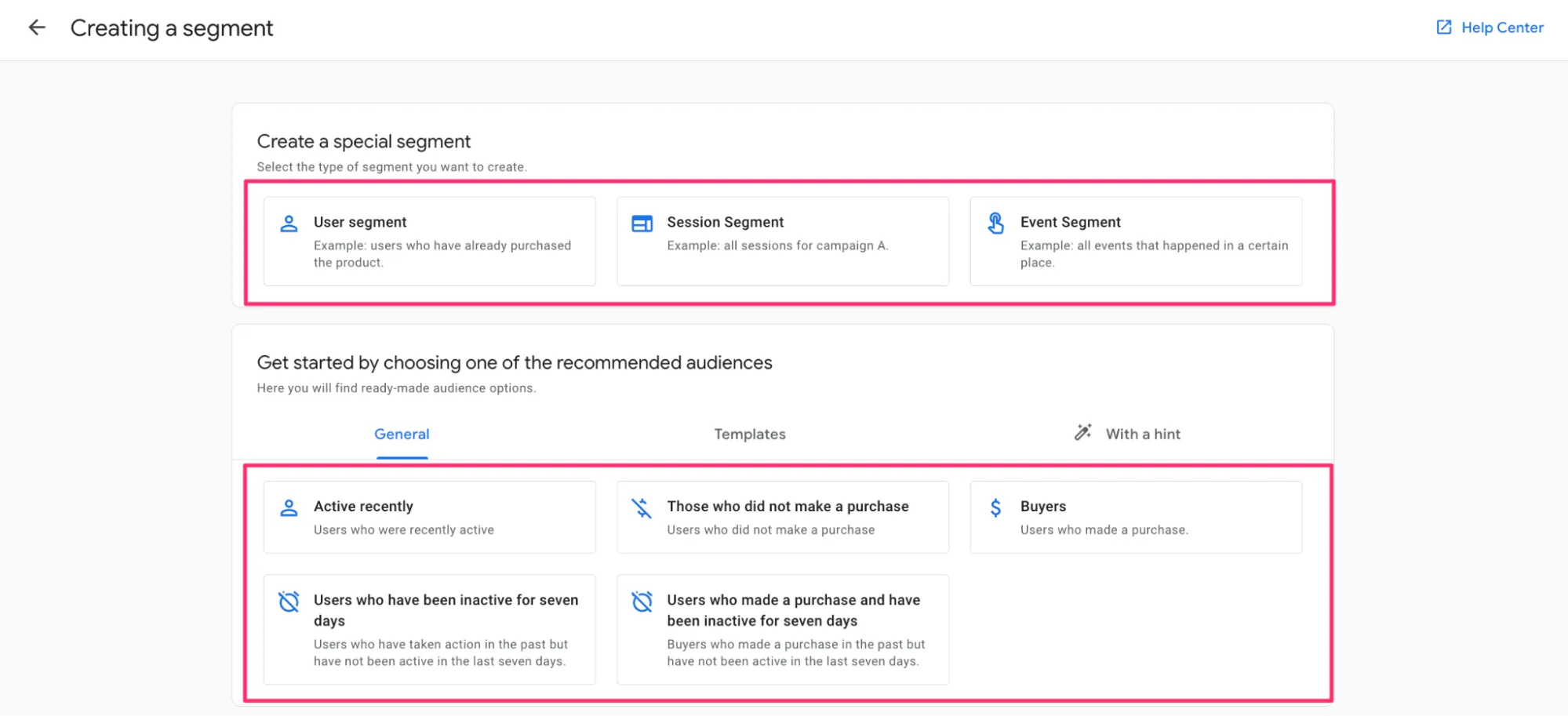
When you edit an existing segment, you will be taken directly to the segment builder.
-
From there, create an audience from a segment. In the segment builder, on the right side, find the Create a new segment checkbox. Select it to open additional settings.
Important points:
-
Audiences begin collecting data from the moment they are created. Past data is not considered.
-
There are limited options for editing audiences — you can only change the name and description or set up the audience activator.
-
A preview of the audience size is displayed on the right side of the builder. Please note that these estimates are based on data from the last 30 days only.
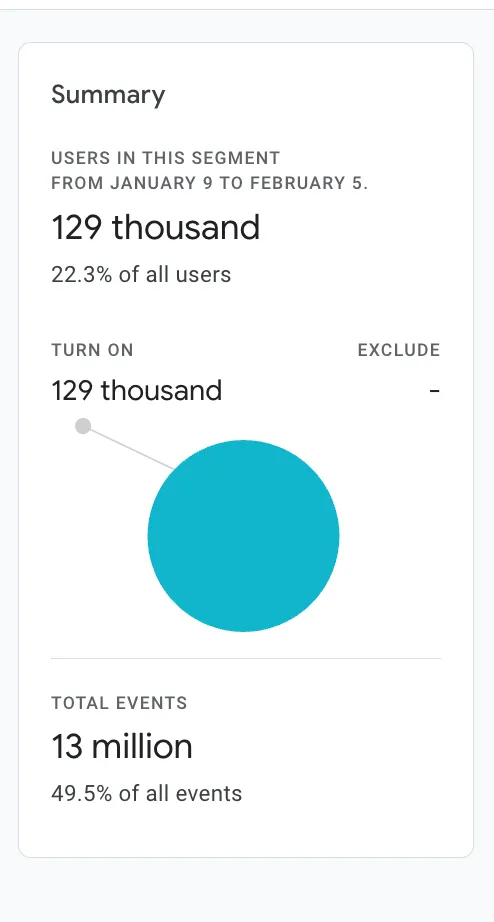
After saving the segment, the audience will automatically be created and begin accumulating data.
How do you edit, copy, or delete an audience?
Google Analytics 4 has certain limitations when it comes to editing, copying, and deleting audiences. Here is the key information as of 2025.
Editing audiences
The options for editing existing audiences are limited:
-
You can change the name and description of an audience.
-
You can also add an audience trigger, if one has not already been set.
-
You cannot change the basic conditions or criteria of an existing audience.
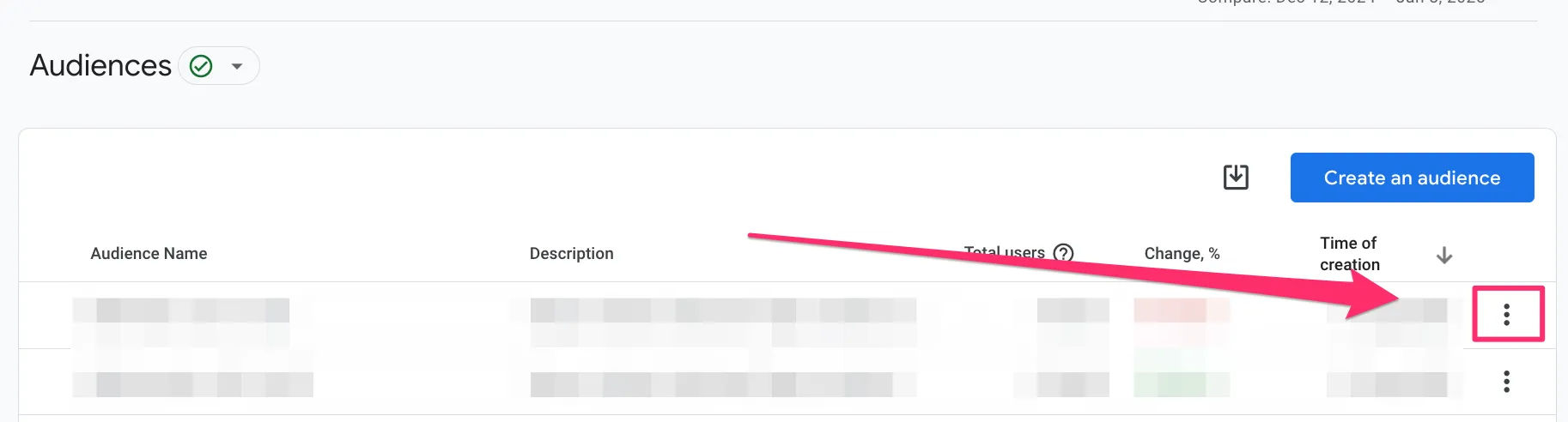
To edit basic audience information:
-
Go to Admin > Audiences.
-
Click the three dots next to the audience that you want to edit.
-
Select Edit.
In the audience/segment builder, you can change the name or description or add a trigger.
Copying audiences
The system allows you to duplicate an existing audience.
-
When you do so, a new audience is created that collects data from the moment of creation.
-
Historical data is not transferred to the new audience.
Deleting audiences
In GA4, audiences cannot be permanently deleted.
Instead, you have to use the archive function. You can apply this function at least 48 hours after creating an audience.
Since GA4 is constantly being updated, always check the latest Google documentation for the most up-to-date information on the capabilities and limitations of the audiences feature.
Conclusions
Google Analytics 4 offers many ways to create audiences. Used effectively, they can help you better understand users and generate more results with remarketing.
-
GA4 audiences are dynamic groups of users formed based on actions, behavior, or attributes.
-
Segments and audiences have different purposes: segments are suitable for analytics in research, while audiences are suitable for marketing activities, particularly in Google Ads.
-
You can convert segments into audiences, which speeds up the creation process.
-
Creating a custom audience requires a clear understanding of inclusion and exclusion criteria and membership duration.
-
Common audiences and templates are convenient for those who are new to GA4.
-
Demographic, technological, and traffic audiences can be used to form more personalized user groups.
-
Audiences with a hint open up new opportunities for analytics using machine learning.
-
Editing, copying, and deleting audiences allows you to keep your analytics structure relevant and flexible.

 0
0
 0
0
 0
0
 0
0
Related Articles
Local SEO for Construction Companies Explained
If clients can’t find you online, they hire someone else. Learn how local SEO puts your construction business in front of ready buyers.
How to Market a Security Company in 2026?
Most security companies are invisible online. Here's how to fix that and turn your digital presence into a steady stream of qualified leads.
Sustainability Marketing: 7 Smart Ways to Earn Trust (and Customers)
Learn how to grow your brand efficiently while using eco-friendly marketing practices to build trust and long-term revenue.