
Connecting Search Console API to Google Spreadsheets
If you’re looking for a guide on how to connect Google Search Console API to Google Spreadsheets, this article is just the ticket.
Why to connect Google Search Console API to Google Spreadsheets?
This setting will help you download the following data from Google Search Console (GSC):
- Search Analytics: the one that can be found in the “Performance” section in GSC.
- Sitemaps: adding and deleting sitemaps, getting information on definite sitemaps.
- Sites: adding and deleting sites (in GSC), getting information and lists of sites in GSC.
- URL Crawl Errors Counts. Getting information on the number of errors which belong to the following types: authPermissions, flashContent, manyToOneRedirect, notFollowed, notFound, other, roboted, serverError, soft404 in terms of mobile, smartphoneOnly and web.
- URL Crawl Errors Samples. Getting information on errors, list of URLs where the errors have been detected, marking URL as “fixed” and remove it from the list.
{tilda_form_wildcard_23159580}
How to connect Google Search Console API to Google Spreadsheets
- Make a copy of the table we’re going to connect Google Search Console API to. OAuth2 library has been already connected to it.
Reports you receive from colleagues are sometimes protected, and this guide shows how to copy a protected Google Sheet for your own analysis.
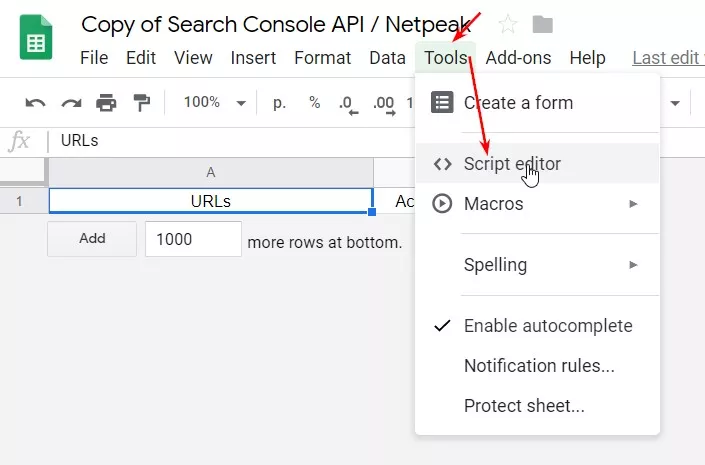
- Go to the “Script editor”.
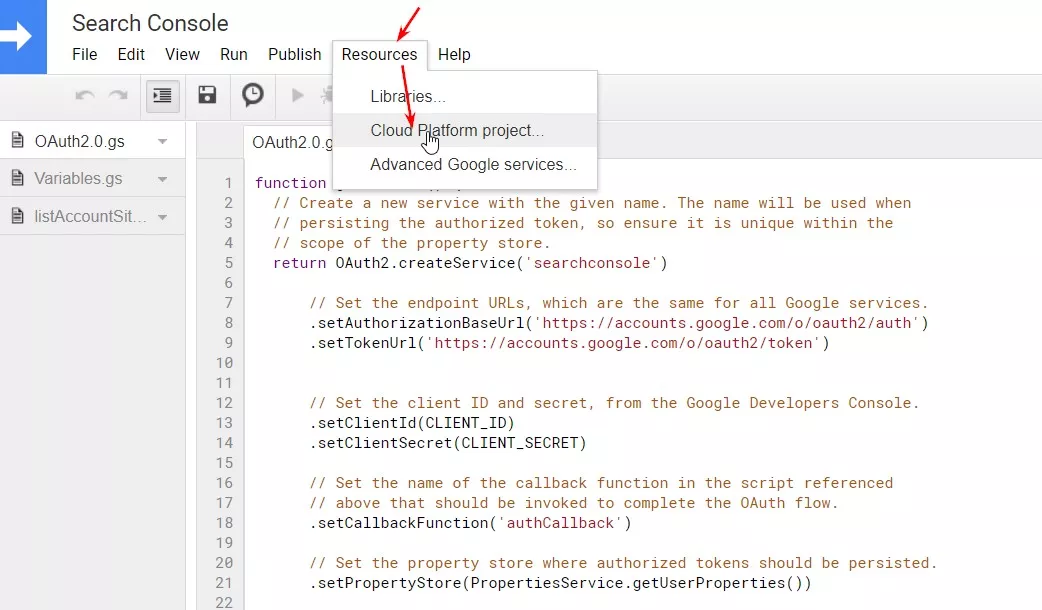
- Go to the “Cloud Platform project” section.
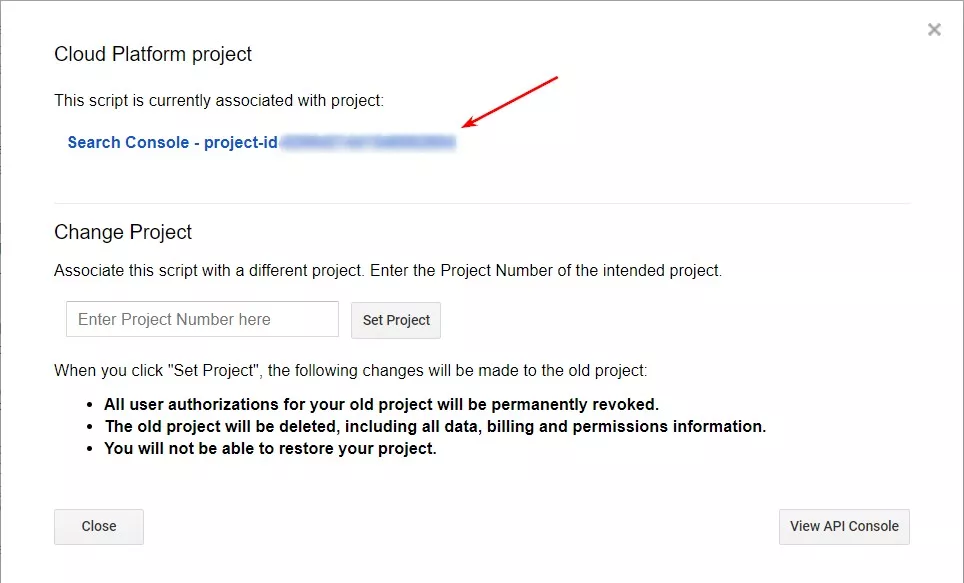
- Then follow a link:
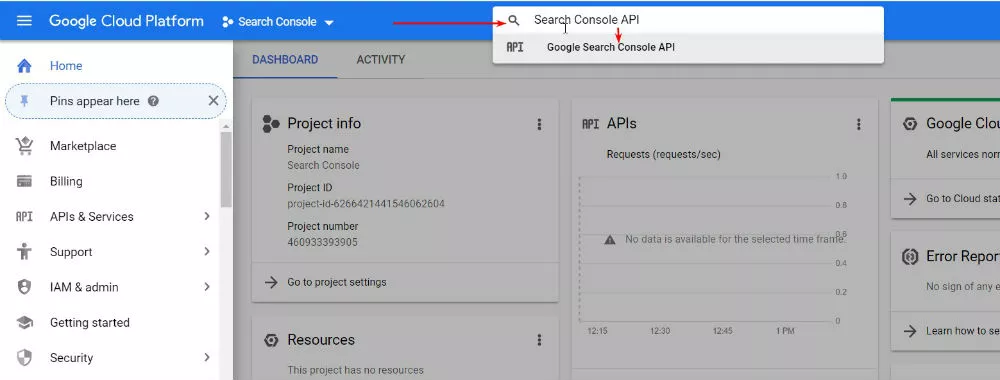
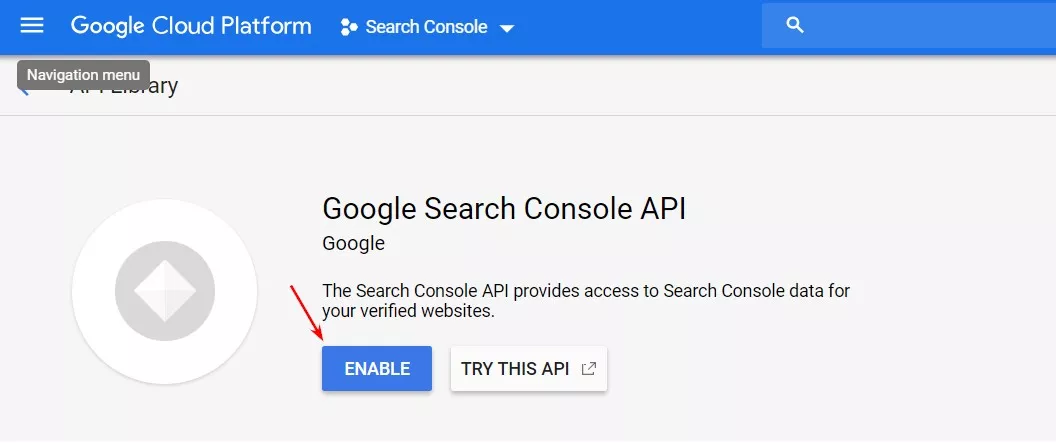
- We got into the Google Cloud Platform. Start typing “Search Console API” in the Google Cloud Platform search line and follow a link.
- Click on the “Enable” button.
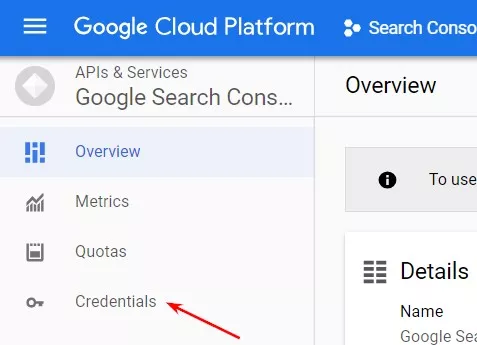
- Then go to “Credentials”.
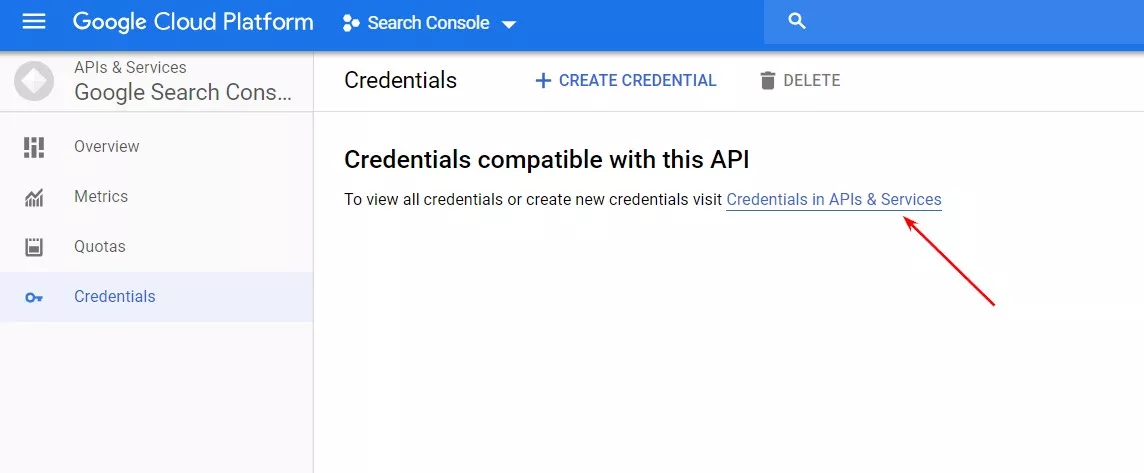
- Follow a link:
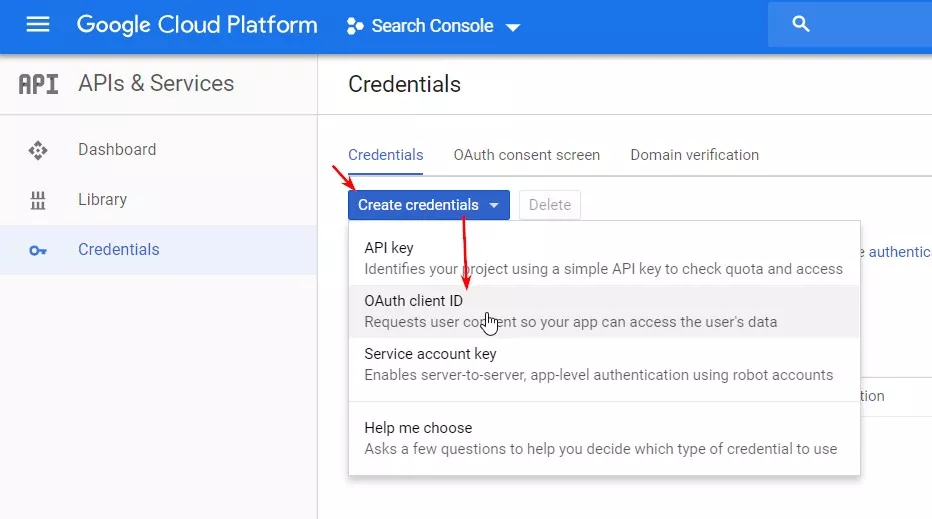
- Create “OAuth client ID” credentials.
- Select “Web application”.
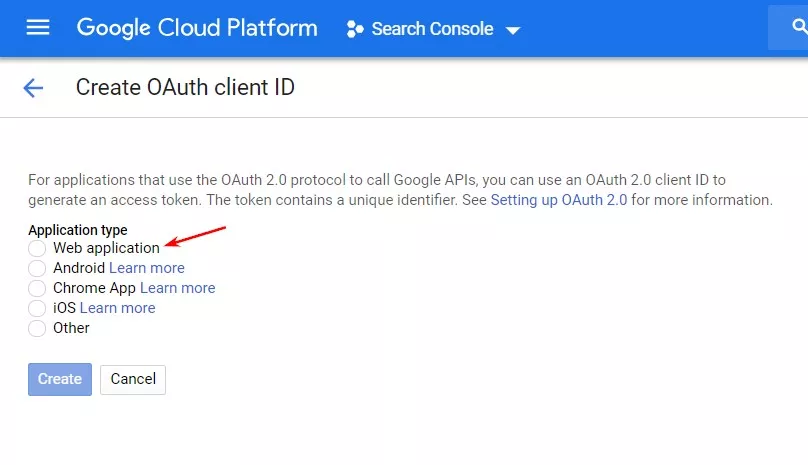
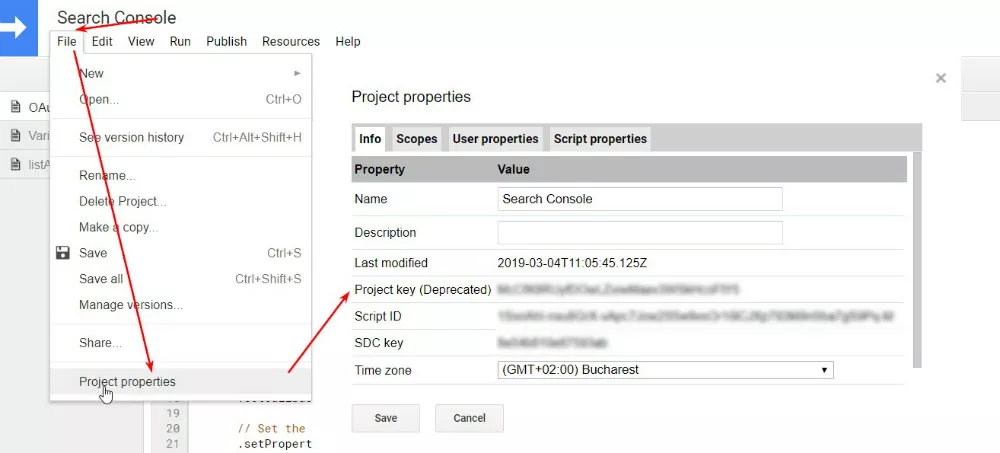
- Paste https://script.google.com/macros/d/{sript_ID}/usercallback line to the “Authorized redirect URLs” field.
- ({sript_ID} should be taken from the Apps Script editor. Just click on “File” — "Project properties").
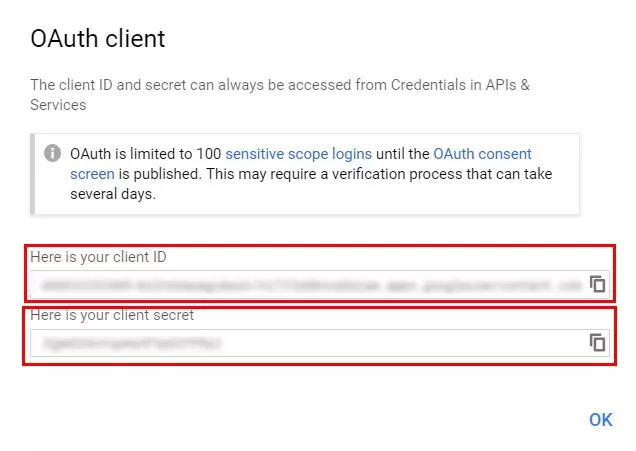
- Then you’ll see a window with your client ID and your client secret. Save the information provided in these fields; you’ll need them when working with Google Search Console API in Google Spreadsheets.
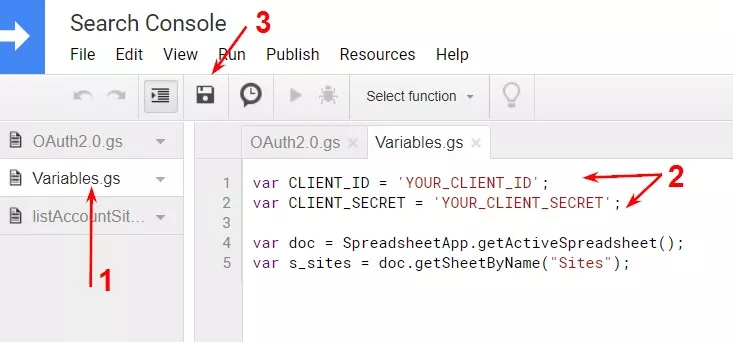
- Then go to the script, open “Variables” tab. Paste your client ID for a “CLIENT_ID” variable and your client secret for a “CLIENT_SECRET” variable. Click “Save”.
- Open the document we copied in previous steps and run a script for the final authorization:
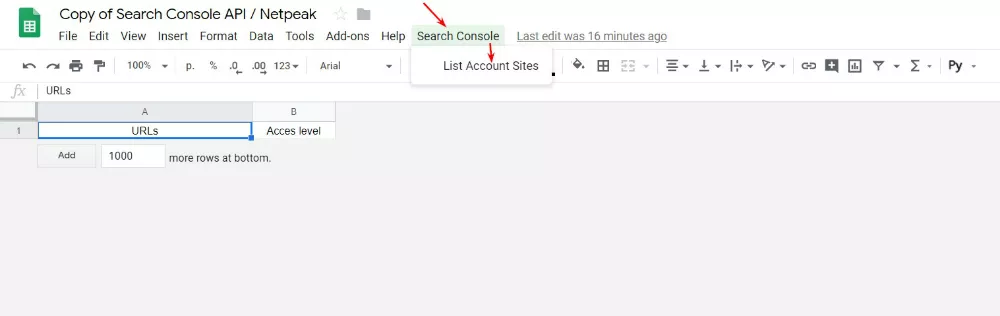
- Click “Continue”.
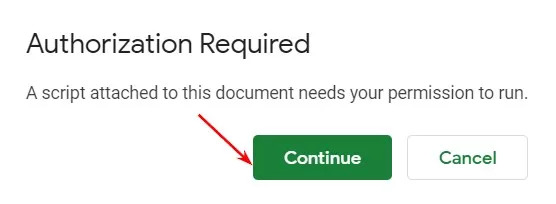
- Choose the required account:

- Follow tips on the following screenshot:

- Click on “Allow”:

- Copy URL, open a new tab, insert the link and follow it.
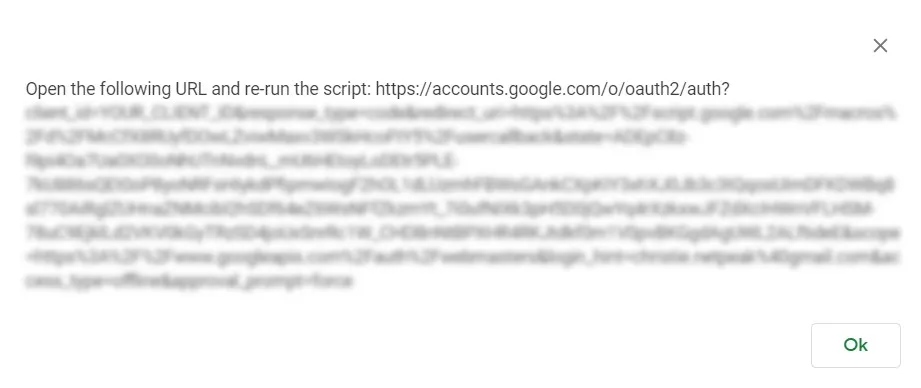
- If you have properly done everything, you will see a window to specify your profile and allow to access to your account (like we did in paragraphs 16 and 18).
- If you see this window, Google Search Console API has been successfully connected:

- To make sure that everything works properly, open the document and rerun the script (like in p.14). As a result, you’ll see all the sites available in Google Search Console account on the “Sites” tab.
Failed to connect? Feel free to describe your problems in comments. I will be glad to help.
Conclusions
- Having analyzed the possibilities of GSC API methods, we managed to automate the process of site checking in this tool.
- You may ask: “Why not to use the Add-on, which helps to download data from GSC?” Surely, the Add-on is more simple to use, but it allows to download reports from the “Performance” section only while Search Console API allows to download reports from other sections as well.

 0
0
 0
0
 0
0
 0
0
Related Articles
Black Friday Marketing 2026 in Europe: How to Win the Season Before It Starts
Google surveyed thousands of European shoppers about Black Friday 2026: when they buy, which discounts work, and where they find deals. Plus an 8-week Black Friday marketing plan to win the season.
Shoppable YouTube: How to Make Every Screen Shoppable
Shoppable YouTube turns your video ads into mini storefronts by adding clickable products from your Merchant Center catalog.
What Is the Average Amazon PPC Cost in 2026 by Category?
Explore average Amazon PPC costs in 2026 by category, including CPC and ACoS, to help sellers plan and optimize ad spend.